
Before you buy 6
What is ACT Head Impact Tracker?
ACT Head Impact Tracker is measuring and tracking device for head movements caused by impacts and forces acting on a head while doing sports. The system consist of: a sensor, mobile application and cloud service.
How does it work?
ACT Head Impact Tracker has three parts: head sensor, smartphone mobile App, and Cloud service. When head sensor detects an event on a head with 10g or more, it sends information to a Cloud server via ACT Head Impact Tracker smartphone mobile App. The Cloud server processes the information, saves it, and sends the event data back to the assigned User Accounts where it can be accessed via mobile Apps or Browser Access in www.act-tracker.com. If the data transfers are available, this should take no more than few seconds.
Who is the product for?
Athletes in the sports where impacts and forces act on a head. These sports include likes of football/soccer, American football, ice-hockey, rugby, basketball, softball, baseball, Alpine sports, equestrian sports, motor sports, contact and combat sports and many more.
What smartphone devices are compatible with ACT Head Impact Tracker?
iPhones and Android phones with A10 and newer operatings system should work with ACT Head Impact mobile app, but we have not validated the functionality with all the devices, systems and settings which might impact on the system functionality. Also iPads work, but the reach of Bluetooth® wireless communication reach tends to be shorter in hem, so we recommend using mobile phones when listening to the head sensors.
The key for system functionality is to have the correct settings in your mobile device and for ACT Head Impact Tracker App. They vary between the different operating systems and may be changed in any mobile device OS update. If your app stops workig after such update, please let us know in contact(at)norspo.com and we can try to address the issue as soon as possible.
Thank you for your help!
Setting up ACT Head Impact Tracker App in your mobile phone
1. Give ACT Head Impact Tracker App permissions in your phone as follows:
ANDROID phones
a.) Give ACT App permission to use “Bluetooth” and “Location”
b.) Give ACT App permission to use “Specific Location” if applicable. “Specific location” can be found for example in “General Settings” > Applications > ACT Head Impact Tracker > Permissions > Location > If you find here “Use specific location”, it must be on and active.
c.) Give App permission to use “Nearby devices” when applicable.
d.) If it is not possible to use always with Wi-Fi, please ensure ACT App has permission to use mobile data.
iPHONES
a.) Give ACT App permission to use “Bluetooth” and “Location”.
b.) Give your phone’s Bluetooth® permission to connect to new devices. When your phone is asking this in ACT App > give permission. You can check the permission status in “general settings” > Applications > ACT > Bluetooth permission ( or “allow ACT to access”) is active and on.
c.) If you want to receive ACT’s notifications on the events ensure you have given ACT app the permission to send notifications. “Allow notifications” should be active and on.
d.) If it is not possible to use always with Wi-Fi, please ensure ACT App has permission to use mobile data.
2. Always when you want to connect and listen to the sensors, ensure your phone is connected to Wi-Fi (LAN), or you have mobile data available. Ensure ACT App has permission to use mobile data.
Important Usage and Safety Information
Important usage and Safety Information
Place the sensor only in a location where impacts, bumps or pressure do not occur.
We do not guarantee that ACT Head Impact Tracker products or services will meet your requirements. We do not guarantee that ACT Head Impact Tracker smartphone mobile Application, sensor hardware or firmware, cloud service or firmware, data transfer or any other part of the products or services, any information obtained or not obtained from using the products or services will be error-free, secure or timely. We do not guarantee that information received or not received when using ACT Head Impact Tracker is timely, accurate or reliable, or that the errors in the products or services are corrected. We cannot guarantee that ACT Head Impact Tracker product or services or any content on them, will always be available or uninterrupted.
ACT Head Impact Tracker is a measuring device. ACT Head Impact Tracker is not a protective gear or device and it does not protect against injuries of any kind.
ACT Head Impact Tracker is not a medical device and it does not provide medical advice. ACT Head Impact Tracker is not intended to be used in any kind of diagnostics, and it does not provide any kind of diagnostic or treatment of a health problem. ACT Head Impact Tracker products or services, any content or information there, is not to be used in place of consultation of licensed medical professional. In case of a head impact, or when suspecting one or a concussion, immediately and safely leave the activity and seek help from licensed medical professionals. In case of an emergency, call an ambulance. If you have been given medical advice by a licensed medical professional, always follow that advice despite any information or content in or from ACT Head Impact Tracker. Northern Sports Insight and Intelligence Oy or ACT Head Impact Tracker are no health care specialists, nor is communication between you and us or ACT Head Impact Tracker forming any kind of doctor-patient relationship.
ACT Head Impact Tracker head sensor or head sensor Pro is not a household product. Head sensor is powered by CR2032 coin cell battery and the battery compartment hatch is not secured with a screw or other such, and it does not require a tool to open the battery compartment hatch.
Do not use or store the head sensor in households or other venues where small children may be in and get access to it. Head sensor is a professional product to be used and stored in the venues where and in the manner which no small children can have access to it.


- ACT Head Impact Tracker is a measuring device to complement doing safe and responsible sports. It is designed for athletes, coaches, trainers and team personnel, co-athletes, families and friends of athletes.
- ACT Head Impact Tracker head sensor has a built-in automatic switch off in 3 hours after switching it on. If your exercise last longer than 3 hours, remember to switch the sensor back on!
- Children under 16 years old must use the products and services in adult supervision and must not submit any personal information to ACT Head Impact Tracker products or services.
- ACT Head Impact Tracker needs location services and Bluetooth® wireless connection to be enabled, on and active in the mobile device for ACT Head Impact Tracker smartphone mobile App, and always when using it with ACT Head Impact Tracker head sensor. Otherwise, ACT Head Impact Tracker will not function as intended.
- Be aware of the data transfer range, reach of Bluetooth® wireless connection limitations between the head sensor and mobile device with the App. The range may vary for multiple reasons. Indoors and in other compromised conditions, in the case of an incident keep the distance between the two as short as possible. The range can be less than 10 meters. The event data delivery may be delayed always when the communicating devices are not within the reach when sensors try to send the information forward.
- Mobile device with ACT Head Impact Tracker smartphone mobile App must have valid SIM-card or e-SIM with mobile data and roaming (if needed) enabled, on and active, or be connected to Wi-Fi, to enable data transmission from head sensor to the mobile device with the App, from mobile device to the cloud service and from cloud service to the assigned mobile device(s). Otherwise, ACT Head Impact Tracker will not function as intended.
- When you have downloaded the App on your mobile device, your ACT Head Impact Tracker App is part of the system where information flow from the head sensors to the cloud takes place. Use of mobile data on your mobile device with the application may occur at any time when ACT Head Impact Tracker App is open and active, and ACT Head Impact Tracker head sensors are used in your mobile phone’s Bluetooth® Wireless connection’s reach. If you do not want to be part of the system: turn off Bluetooth® Wireless connection in your mobile device, or turn off mobile data for ACT Head Impact Tracker App.
Warnings & Disclaimers
– ACT Head Impact Tracker is a measuring device to complement doing safe and responsible sports. It is designed for athletes, coaches, trainers and team personnel, co-athletes, families and friends of athletes.
– ACT Head Impact Tracker head sensor has a built-in automatic switch off in 3 hours after switching it on. If your exercise last longer than 3 hours, remember to switch the sensor back on!
-Keep the head sensor, accessories, and their packaging out of reach of children and animals. Contains small parts. Risk of suffocation!
– Head sensor is not suitable for children under 36 months of age. Contains small parts. Risk of suffocation!
– ACT Head Impact Tracker head sensor or head sensor Pro is not a household product. Head sensor is powered by CR2032 coin cell battery and the battery compartment hatch is not secured with a screw or other such, and it the battery compartment hatch can be opened without a tool. Do not use or store the head sensor in households or other venues where small children may be in and get access to it. Head sensor is a professional product to be used and stored in the venues where and in the manner which no small children can have access to it.
WARNING!
– Keep the product and packaging out of
reach of children and animals. Risk of suffocation
– Not suitable for children under 6 years of age.
Contains small parts. Chocking hazard. Risk of suffocation!
– Check the product for damage and wear before every use.
– Check that all parts and locking mechanisms are secure before each use.
– The product may be used only when in good working
order and condition.
– Use in adult supervision.
– Do not modify the head sensor in any way. Use only the
way instructed.
– Contains CR2032 Lithium-ion Coin Battery, with a nominal voltage
of 3 volts.
– Remove and immediately recycle or dispose of used batteries according to local regulations and keep away from children. Do NOT dispose of batteries in household trash or incinerate.
– Even used batteries may cause severe injury or death.
– Call a local poison control center for treatment information.
– Non-rechargeable batteries are not to be recharged.
– Do not force discharge, recharge, disassemble, heat above 185°F (85°C) or incinerate. Doing so may result in injury due to venting, leakage or explosion resulting in chemical burns.
– Ensure the batteries are installed correctly according to polarity (+ and -).
– Do not mix old and new batteries, different brands or types of batteries, such as alkaline, carbon-zinc, or rechargeable batteries.
– Remove and immediately recycle or dispose of batteries from equipment not used for an extended period of time according to local regulations.
– Always completely secure the battery compartment. If the battery compartment does not close securely, stop using the product, remove the batteries, and keep them away from children.
WARNING REGARDING CR2032 COIN CELL BATTERY!
– Keep out of reach of children and animals.
– Swallowing and ingestion can lead to chemical burns, perforation of intestinal soft tissues and death.
– If you suspect a battery has been swallowed or entered
in any body part, seek medical attention immediately.
CAUTION: RISK OF EXPLOSION IF BATTERY IS
REPLACED BY AN INCORRECT TYPE. DISPOSE OF
USED BATTERIES ACCORDING TO THE INSTRUCTIONS.

WARNING AND IMPORTANT SAFETY INFORMATION!
This product contains a
CR2032 lithium coin battery. Improper handling or misuse poses risks, including
choking, intestine erosion, or other serious injury if swallowed.
To ensure safety:
– Always secure the battery compartment. Removal should require a tool (e.g.,
screwdriver) or two independent simultaneous motions.
– Store new and used batteries out of reach of children.
– In case of ingestion, seek immediate medical attention.
– Dispose of used batteries promptly and safely, in compliance with local and
federal regulations.
Battery Disposal Instructions:
– Lithium-ion batteries should not be disposed of in household garbage or
recycling bins.
– To prevent fires, tape the terminals of used batteries and place them in
separate plastic bags.
– Dispose of lithium-ion batteries at designated recycling or household
hazardous waste collection points.
– Follow the Universal Waste Rule for safe disposal and recycling of
lithium-ion batteries.
– Be aware that state and local regulations for battery disposal may vary;
check local regulations for specific disposal requirements.For more information
on proper disposal methods and locations, visit [EPA website](https://www.epa.gov) or [Call2Recycle](https://www.call2recycle.org ).
Follow all instructions and warnings to reduce the risk of injury, especially
in households with children.

– Children under 16 years old must use the products and services in adult supervision and must not submit any personal information to ACT Head Impact Tracker products or services.
– ACT Head Impact Tracker needs ”Location”, “Specific location” and and Bluetooth® wireless connection to be enabled, on and active in the mobile device for ACT Head Impact Tracker smartphone mobile App, and always when using it with ACT Head Impact Tracker head sensor. Otherwise, ACT Head Impact Tracker will not function as intended.
– Be aware of the data transfer range, reach of Bluetooth® wireless connection limitations between the head sensor and mobile device with the App. The range may vary for multiple reasons. Indoors and in other compromised conditions, in the case of an incident keep the distance between the two as short as possible. The range can be less than 10 meters. The event data delivery may be delayed always when the communicating devices are not within the reach when sensors try to send the information forward.
– Mobile device with ACT Head Impact Tracker smartphone mobile App must have valid SIM-card or e-SIM with mobile data and roaming (if needed) enabled, on and active, or be connected to Wi-Fi, to enable data transmission from head sensor to the mobile device with the App, from mobile device to the cloud service and from cloud service to the assigned mobile device(s). Otherwise, ACT Head Impact Tracker will not function as intended.
– IMPORTANT TO ALL ACT HEAD IMPACT TRACKER APP USERS! When you have downloaded ACT Head Impact Tracker App on your mobile device, your ACT Head Impact Tracker App is part of the system where information flow from the head sensors to the cloud takes place. Use of mobile data on your mobile device with the application may occur at any time when ACT Head Impact Tracker App is open and ACT Head Impact Tracker head sensors are used in your mobile phone’s Bluetooth® Wireless connection’s reach. If you do not want to be part of the system: close ACT Head Impact Tracker App, or turn off Bluetooth® Wireless connection in your mobile device, or turn off mobile data connection for ACT Head Impact Tracker App or entirely in your mobile device, or switch on flight mode.
– We do not guarantee that ACT Head Impact Tracker products or services will meet your requirements. We do not guarantee that ACT Head Impact Tracker smartphone mobile Application, sensor hardware or firmware, cloud service or firmware, data transfer or any other part of the products or services, any information obtained or not obtained from using the products or services will be error-free, secure or timely. We do not guarantee that information received or not received when using ACT Head Impact Tracker is timely, accurate or reliable, or that the errors in the products or services are corrected. We cannot guarantee that ACT Head Impact Tracker product or services or any content on them, will always be available or uninterrupted.
– ACT Head Impact Tracker is a measuring device. ACT Head Impact Tracker is not a protective gear or device and it does not protect against injuries of any kind.
– ACT Head Impact Tracker is not a medical device and it does not provide medical advice. ACT Head Impact Tracker is not intended to be used in any kind of diagnostics, and it does not provide any kind of diagnostic or treatment of a health problem. ACT Head Impact Tracker products or services, any content or information there, is not to be used in place of consultation of licensed medical professional. In case of a head impact, or when suspecting one or a concussion, immediately and safely leave the activity and seek help from licensed medical professionals. In case of an emergency, call an ambulance. If you have been given medical advice by a licensed medical professional, always follow that advice despite any information or content in or from ACT Head Impact Tracker. Northern Sports Insight and Intelligence Oy or ACT Head Impact Tracker are no health care specialists, nor is communication between you and us or ACT Head Impact Tracker forming any kind of doctor-patient relationship.
General information 14
What is the role of frequency and proximity of events when forces and impacts act on a head? Why do they matter?
Frequency of ievents when mpacts and violent forces are acting on a head, making head rapidly move, are significant factor in the risk of brain injuries and diseases. Cumulative exposure to hsuch events especially subconcussive events, may have long-term consequences on brain health. Reducing the frequency of events and implementing protective measures are important steps in mitigating these risks. Long-term monitoring of individuals who are at risk of frequent events, such as athletes and individuals in high-risk professions, is essential.
In contact sports, athletes may experience multiple events causing head rapidly move in close proximity during a single game or practice session. This close succession of such events can contribute to the overall risk of brain injury.
Rule of thumb: the more frequent and closer in proximity, the bigger the chance the damage occurs.
Why is it important to know the number of events when forces and impacts act on a head?
Repeated events when head rapidly moves, accelerates or deaccelerates, even those low in magnitude and in the absence of diagnosed concussions (so-called sub concussive events), may lead to subtle and cumulative brain changes, brain diseases and injuries. Such changes may include alterations in brain structure and function, and the accumulation of abnormal protein deposits like tau, which is associated with neurodegenerative diseases. Repeated such events may also lead to subtle cognitive changes that can affect attention, memory, and other cognitive functions, and they may not become apparent until later in life.
Rule of thumb: the higher the number of events when head rapidly moves, the bigger the chance the damage occurs.
What is ACT Head Impact Tracker?
ACT Head Impact Tracker is measuring and tracking device for head movements caused by impacts and forces acting on a head while doing sports. The system consist of: a sensor, mobile application and cloud service.
Why should I use ACT Head Impact Tracker?
Every athlete, coach, trainer, relevant team personnel, and parent can:
1. Measure and track the events on a head.
Higher numerical values indicate more violent impacts and events.
2. When a high magnitude impact, blow or jolt occurs, act on it.
If no medically trained professionals are available for the assessment, we recommend using sideline TBI assessment tools developed for non-medical first responders, such as Pocket Concussion Recognition Tool 5®.
3. Manage the load on a head.
Aim to decrease the number, magnitude, frequency and proximity to manage the load on the head.
4. Make forces acting on a head visible and concrete.
Create awareness and understanding with objective measures. No more guessing and guestimation. Educate when and why events occur, and what they may cause. Aim for a good sportsmanship and increased respect, less risk-taking, using excessive force and foul play.
5. Take a stand and send a message.
Measuring the events and acting on them, signals to everyone involved that this matter is with high significance and closely observed. Incidents will not go unnoticed and will be acted upon.
Every coach, trainer and relevant team personnel can:
6. Track down the athletes and compare the loads.
Athletes with more events in number, higher in magnitude, closer in frequency and proximity than their peers are in greater risk. Address the issue.
7. Track down the trainings and drills, adjust accordingly.
Trainings and drills with most events, large magnitude events or most frequent events on the athletes involved are those increasing the load and risk levels for the athletes the most. Modify them and/or lower their frequency in the training schedule to decrease the load of all the athletes involved.
8. Track down the effect of positions and games played.
Keep an eye on the athletes in the positions and games with most load on a head, modify the training plans to reduce the load of the athletes.
9. Detect improvement needs in techniques, or physics.
Athletes with better physical condition and technique (in the events like headings, giving and receiving a tackle, falls, etc.) may be better prepared for the events on a head. Track down the differences between the athletes on the graphical illustrations for example, they can help to detect the individuals with gaps in techniques, or physics.
10. Introduce and apply a suitable sideline procedures.
Demonstrating objectively that impacts are occurring should encourage coaches, trainers and team personnel to introduce and apply suitable sideline procedures for injury assessment and detection. Also apply relevant return to sport and return to play protocols to ensure the athletes only return to the action when they have fully recovered from the brain injury.
11. Share with those who care and can help to reduce impact load.
Users can share their event data with those who should know too with the App’s “Manage Profile Shares” functionality. Share the event data with parents, coaches, trainers, or co-athletes, for example.
12. Lead the way.
Teams and clubs tracking the events on a head truly aim to do everything they can to monitor athletes on the pitch and act is a responsible and sustainable manner. This will not go unnoticed by sponsors, partners, athletes or families of athletes.
How does it work?
ACT Head Impact Tracker has three parts: head sensor, smartphone mobile App, and Cloud service. When head sensor detects an event on a head with 10g or more, it sends information to a Cloud server via ACT Head Impact Tracker smartphone mobile App. The Cloud server processes the information, saves it, and sends the event data back to the assigned User Accounts where it can be accessed via mobile Apps or Browser Access in www.act-tracker.com. If the data transfers are available, this should take no more than few seconds.
Who is the product for?
Athletes in the sports where events making head rapidly move, accelerate and deaccelerate, frequently occurs. These sports include likes of football/soccer, American football, ice-hockey, rugby, basketball, softball, baseball, cheerleading, figureskating, Alpine sports, equestrian sports, motor sports, fight and combat sports, and many, many more.
What can magnitude numbers tell me?
ACT Head Impact Tracker measures head movements, which might be caused by an impact on a head, crash, fall, or bump on a torso for example. Measurements are initial and total maximum linear acceleration/deceleration (g-force) and Impact g-load in all sensor versions and types.
In ACT Head Impact Tracker head sensor Pro there is also rotational movement measurement in initial and total maximum angular vacceleration (rad/s2) and initial and total maximum angular elocity (rad/s).
Typically brain injury results from the combination of angular and linear forces. There is no clear consensus of a clear-cut danger limit as expressed in linear acceleration/deceleration (g-force), or that of angular acceleration (rad/s2) or velocity (rad/s), nor Impact g-load. However, in many studies acceleration/deceleration under 40g have been considered likely not to cause permanent damage, but it can be extrapolated that the probability of permanent damage starts to increase in impacts within the range of 40-60g and higher. This when considering individual and infrequent impacts.
Rule of thumb applies: the bigger the magnitude, the bigger the chance damage may occur.
What event information is collected?
ACT Head Impact Tracker measures head movements, which might be caused by an impact on a head, crash, fall, or bump on a torso for example. Measurements are initial and total maximum linear acceleration/deceleration (g-force) and Impact g-load in all sensor versions and types. In ACT Head Impact Tracker head sensor Pro there is also rotational movement measurement in initial and total maximum angular vacceleration (rad/s2) and initial and total maximum angular elocity (rad/s). The time of an incident is also stamped to each event. Users’ event history is saved to the Profile. The data is available in raw data, numerical and graphical formats in the mobile App (for some parts) and in Browser access (all of the data) collected.
How the data moves from the sensor to the app?
When an event with 10g or over occurs, the head sensor starts sending information to the mobile device with ACT Head Impact Tracker App via Bluetooth® wireless connection. Bluetooth® wireless connection reach is heavily impacted by the mobile phone brand, model and settings, as well as conditions such as weather, number of obstacles on the way (which includes other athletes) and so on.
If the mobile device with the App and head sensor(s) are not at Bluetooth® wireless connection’s reach (in practice the reach usually may be around 15-50 meters), the head sensor saves the event data, and keeps trying to send it until sensor is switched off. As soon as the head sensor is switched back on, it will try to send the unsent saved data. The event information sensor has saved will be transmitted when the sensor is at Bluetooth® wireless connection reach and multiple events’ information can be transferred on one go.
IMPORTANT TO ALL ACT HEAD IMPACT TRACKER APP USERS! When you have downloaded ACT Head Impact Tracker App on your mobile device, your ACT Head Impact Tracker App is part of the system where information flow from the head sensors to the cloud takes place. Use of mobile data on your mobile device with the application may occur at any time when ACT Head Impact Tracker App is open and ACT Head Impact Tracker head sensors are used in your mobile phone’s Bluetooth® Wireless connection’s reach. If you do not want to be part of the system: close ACT Head Impact Tracker App, or turn off Bluetooth® Wireless connection in your mobile device, or turn off mobile data connection for ACT Head Impact Tracker App or entirely in your mobile device, or switch on flight mode.
Why is there no risk assessment or classification of the impact severity in ACT Head Impact Tracker?
We believe that there is not sufficient medical research to reliably, simply and safely classify the individual events to “small-medium-hard” or “green-yellow-red” on the basis of g-force, angular velocity (rad/s) or any other such measurement. In the absence of proven, reliable, scientific results ACT Head Impact Tracker is not telling you “when the impact is too hard, or when it is not”, “when there is too many events, or when not”, “when the load is getting too high, or when it is not”, nor will ACT tell you “when you have to seek medical help, or when not”. There simply is no safe way for a measuring and tracking device for impacts and forces acting on a head to do so. More data and research is needed.
Why do some of the other products have features like risk evaluation based on the impact forces?
That is a question you have to ask them.
What do I do if I get a head impact or have violent forces acting on my head?
Immediately and safely leave the activity. It is always recommended to seek immediate medical attention, if there is any reason to suspect a brain injury. If a medically trained professional is not available, there are some sideline tools available for anyone to use: BMSJ’s Concussion Recognition Tool®s (CRT). You can download for free the English version of CRT 5 here: https://bjsm.bmj.com/content/51/11/872 and English version of Pocket CRT here: https://bjsm.bmj.com/content/47/5/267. These tools are available translated to many other languages, look them up in the web, print out and include it into your training kit.
What smartphone devices are compatible with ACT Head Impact Tracker?
iPhones and Android phones with A10 and newer operatings system should work with ACT Head Impact mobile app, but we have not validated the functionality with all the devices, systems and settings which might impact on the system functionality. Also iPads work, but the reach of Bluetooth® wireless communication reach tends to be shorter in hem, so we recommend using mobile phones when listening to the head sensors.
The key for system functionality is to have the correct settings in your mobile device and for ACT Head Impact Tracker App. They vary between the different operating systems and may be changed in any mobile device OS update. If your app stops workig after such update, please let us know in contact(at)norspo.com and we can try to address the issue as soon as possible.
Thank you for your help!
Setting up ACT Head Impact Tracker App in your mobile phone
1. Give ACT Head Impact Tracker App permissions in your phone as follows:
ANDROID phones
a.) Give ACT App permission to use “Bluetooth” and “Location”
b.) Give ACT App permission to use “Specific Location” if applicable. “Specific location” can be found for example in “General Settings” > Applications > ACT Head Impact Tracker > Permissions > Location > If you find here “Use specific location”, it must be on and active.
c.) Give App permission to use “Nearby devices” when applicable.
d.) If it is not possible to use always with Wi-Fi, please ensure ACT App has permission to use mobile data.
iPHONES
a.) Give ACT App permission to use “Bluetooth” and “Location”.
b.) Give your phone’s Bluetooth® permission to connect to new devices. When your phone is asking this in ACT App > give permission. You can check the permission status in “general settings” > Applications > ACT > Bluetooth permission ( or “allow ACT to access”) is active and on.
c.) If you want to receive ACT’s notifications on the events ensure you have given ACT app the permission to send notifications. “Allow notifications” should be active and on.
d.) If it is not possible to use always with Wi-Fi, please ensure ACT App has permission to use mobile data.
Email verification email is not coming and I cannot move forward, what can I do?
Verification email will come from email address: no-reply(at)widian-nsii.firebaseapp.com
Please check your junk email folder too.
You can also click on the right had upper corner arrow head to log out of the App and try logging back in.
Getting started 12
Quick start guide – Head sensor & App
Setting up ACT Head Impact Tracker App in your mobile phone
Give ACT Head Impact Tracker App permissions in your phone as follows:
ANDROID phones
a.) Give ACT App permission to use “Bluetooth” and “Location”
b.) Give ACT App permission to use “Specific Location” if applicable. “Specific location” can be found for example in “General Settings” > Applications > ACT Head Impact Tracker > Permissions > Location > If you find here “Use specific location”, it must be on and active.
c.) Give App permission to use “Nearby devices” when applicable.
d.) If it is not possible to use always with Wi-Fi, please ensure ACT App has permission to use mobile data.
iPHONES
a.) Give ACT App permission to use “Bluetooth” and “Location”.
b.) Give your phone’s Bluetooth® permission to connect to new devices. When your phone is asking this in ACT App > give permission. You can check the permission status in “general settings” > Applications > ACT > Bluetooth permission ( or “allow ACT to access”) is active and on.
c.) If you want to receive ACT’s notifications on the events ensure you have given ACT app the permission to send notifications. “Allow notifications” should be active and on.
Always when you want to connect and listen to the sensors, ensure your phone is connected to Wi-Fi (LAN), or you have mobile data available. Ensure ACT App has permission to use mobile data.
Accessing your user account and data on tablets and computers
Use our Browser access: https://dashboard.act-tracker.com/login
Type in your user account ID and password to enter. Please note you will need mobile app and mobile phone to interact and collect data from the sensors.
Quick StartGuide
1. Buy CR2032 coin cell battery (or remove the plastic strip underneath the battery, if battery was included).
2. Download ACT Head Impact Tracker smartphone mobile App on your smartphone. Please note: The App’s compatibility with all and every smartphone brand and model has not been tested and cannot be guaranteed. See more information in our website www.act-tracker.com Help.
3. Create a User Account in the App. Your email will act as a User-ID. Make sure to store your password somewhere safe, it cannot be reset.
4. Create a Profile in your User Account to which you want to add the head sensor to.
In Android phones: Click “Add profile” and follow the App’s instructions in creating the Profile. Please note: You cannot remove or change the Profile once created.
In iPhones: Click “New profile” and follow the App’s instructions in creating the Profile. Please note: You cannot remove the Profile once created. You can change the information on the Profile information by clicking on a Profile > click on a picture of female screw to open a menu > click any information you want to change. Save the changes.
5. Give App permission to use Location, and “Specific Location” if applicable. “Specific location” can be found for example in “General Settings” > Applications > ACT Head Impact Tracker > Permissions > Location > If you find here “Use specific location”, it must be on and active. You also may have to give App permission to use “Nearby devices” when applicable.
In iPhone: you also must give phone’s Bluetooth® permission to connect to new devices.
6. Bluetooth® wireless connection must be enabled, on and active in your smartphone with the App always when using it with the sensor(s) and want to get the data in near-real-time.
7. Ensure mobile data and roaming (if needed) are enabled, on and active in your mobile device for the App and always when using it with the head sensor, or that you are connected to Wi-Fi.
8. Remove the head sensor from its package. Open the hatch. Remove the plastic strip in between the battery and the electronics by carefully pulling it off, or buy CR2032 coin cell battery if it was not included and insert the battery to the sensor via hatch on the short side (see illustrated instructions in the end of this document).
9. Locate the head sensor’s Serial number also acting as Registration code, which is on the product label underneath the battery hatch. Open the hatch and you will find the white sticker on the lid. Registration code is a 6-digit code on the product label.
10. Close the hatch by pressing all sides firmly together to seal the locks. Make sure the sides are seamlessly connected with each other before usage. Please note: Inserting the battery may turn the sensor on, but some components might not turn on. Before usage, switch the sensor off and back on.
11. Turn the head sensor on by pressing the on/off-button once slowly and firmly. The sensor is on when the small red LED light next to the button starts to blink in slow frequency. If the light blinks in high frequency (in fast pace), the battery is almost empty. Change the battery or ACT Head Impact Tracker might not work as intended. If the light does not come on at all or the light comes on, but it is not blinking, try with new battery. If the light still is not coming on at all, or the light comes on, but it is not blinking, the head sensor is not working as it is supposed to and should be replaced.
12. When the sensor is on, choose the Profile you want to add the sensor to and click on it.
In Android phones: We recommend to always use Active Scanning when listening to the sensors. It is necessary to use if your mobile device is not automatically connecting with the sensors (i.e. an event occurs, you are in Bluetooth® Wireless connection’s reach, but information is not appearing to the App). 1.) Start Active Scan: Click “Menu” (3 bars on the left upper hand corner) > Click “Start active scan” > text turns to “Stop active scan” = Active scanning is on until you switch it off, or shut down ACT Head Impact Tracker App. 2.) Stop Active scan: Click “Stop active scan”. > Text turns to “Start active scan” = Active scanning is off. If Active Scan is on, but event information is not received, try switching Active scanning off and turning it back on again.
Adding sensor In Android phones: Click then green button next to “Sensors”, and then the “Add Sensor” button. The App has found the sensor when it says: “Found 1 sensor”. Click “Continue”. The App is connected to the sensor when it shows “Connected to 1/1 sensors”. Add the Registration code to the line under the text. Click “Continue”. If the App cannot find any sensor, switch the sensor off and back on, and try again. If the App finds more than one sensor, switch off all the other sensors than the one you want to register and try again. Please note: You can register the head sensor only once, and to one Profile only. It is not possible to remove or change the head sensor to another Profile once registered.
Adding sensor in iPhones: Click on “add new sensor” and fill in the information requested. When you get to “Activate the new sensor”, switch the sensor on and click “Activate”. If the App cannot find any sensor, switch the sensor off and back on, and try again. If the App finds more than one sensor, switch off all the other sensors than the one you want to register and try again. Please note: You can register the head sensor only once, and to one Profile only. It is not possible to remove or change the head sensor to another Profile once registered.
13. Follow Apps instructions to complete sensor registration. Please note: you cannot change sensor’s information once registered in Android App.
14. When data filling is completed, the App will confirm “Registration is successful”. This means your ACT Head Impact Tracker is ready for action.
15. In the end of each session of use, make sure to switch off the sensor by pressing on/off-button slowly and firmly twice. Wait for one long LED light blink to indicate the sensor is switched off. Doing this will prevent impacts from handling and transportation to be recorded to your impact history. It will also save energy and prolong your battery lifetime.
Important Usage and Safety Information
Important usage and Safety Information
Place the sensor only in a location where impacts, bumps or pressure do not occur.
We do not guarantee that ACT Head Impact Tracker products or services will meet your requirements. We do not guarantee that ACT Head Impact Tracker smartphone mobile Application, sensor hardware or firmware, cloud service or firmware, data transfer or any other part of the products or services, any information obtained or not obtained from using the products or services will be error-free, secure or timely. We do not guarantee that information received or not received when using ACT Head Impact Tracker is timely, accurate or reliable, or that the errors in the products or services are corrected. We cannot guarantee that ACT Head Impact Tracker product or services or any content on them, will always be available or uninterrupted.
ACT Head Impact Tracker is a measuring device. ACT Head Impact Tracker is not a protective gear or device and it does not protect against injuries of any kind.
ACT Head Impact Tracker is not a medical device and it does not provide medical advice. ACT Head Impact Tracker is not intended to be used in any kind of diagnostics, and it does not provide any kind of diagnostic or treatment of a health problem. ACT Head Impact Tracker products or services, any content or information there, is not to be used in place of consultation of licensed medical professional. In case of a head impact, or when suspecting one or a concussion, immediately and safely leave the activity and seek help from licensed medical professionals. In case of an emergency, call an ambulance. If you have been given medical advice by a licensed medical professional, always follow that advice despite any information or content in or from ACT Head Impact Tracker. Northern Sports Insight and Intelligence Oy or ACT Head Impact Tracker are no health care specialists, nor is communication between you and us or ACT Head Impact Tracker forming any kind of doctor-patient relationship.
ACT Head Impact Tracker head sensor or head sensor Pro is not a household product. Head sensor is powered by CR2032 coin cell battery and the battery compartment hatch is not secured with a screw or other such, and it does not require a tool to open the battery compartment hatch.
Do not use or store the head sensor in households or other venues where small children may be in and get access to it. Head sensor is a professional product to be used and stored in the venues where and in the manner which no small children can have access to it.
- ACT Head Impact Tracker is a measuring device to complement doing safe and responsible sports. It is designed for athletes, coaches, trainers and team personnel, co-athletes, families and friends of athletes.
- ACT Head Impact Tracker head sensor has a built-in automatic switch off in 3 hours after switching it on. If your exercise last longer than 3 hours, remember to switch the sensor back on!
- Children under 16 years old must use the products and services in adult supervision and must not submit any personal information to ACT Head Impact Tracker products or services.
- ACT Head Impact Tracker needs location services and Bluetooth® wireless connection to be enabled, on and active in the mobile device for ACT Head Impact Tracker smartphone mobile App, and always when using it with ACT Head Impact Tracker head sensor. Otherwise, ACT Head Impact Tracker will not function as intended.
- Be aware of the data transfer range, reach of Bluetooth® wireless connection limitations between the head sensor and mobile device with the App. The range may vary for multiple reasons. Indoors and in other compromised conditions, in the case of an incident keep the distance between the two as short as possible. The range can be less than 10 meters. The event data delivery may be delayed always when the communicating devices are not within the reach when sensors try to send the information forward.
- Mobile device with ACT Head Impact Tracker smartphone mobile App must have valid SIM-card or e-SIM with mobile data and roaming (if needed) enabled, on and active, or be connected to Wi-Fi, to enable data transmission from head sensor to the mobile device with the App, from mobile device to the cloud service and from cloud service to the assigned mobile device(s). Otherwise, ACT Head Impact Tracker will not function as intended.
- When you have downloaded the App on your mobile device, your ACT Head Impact Tracker App is part of the system where information flow from the head sensors to the cloud takes place. Use of mobile data on your mobile device with the application may occur at any time when ACT Head Impact Tracker App is open and active, and ACT Head Impact Tracker head sensors are used in your mobile phone’s Bluetooth® Wireless connection’s reach. If you do not want to be part of the system: turn off Bluetooth® Wireless connection in your mobile device, or turn off mobile data for ACT Head Impact Tracker App.
User Manual
How to get the app
ACT Head Impact Tracker
mobile App is available for iOS, and smartphones running Android 10 and newer
Android operating systems (Note: most of the Android tablets do not work with
the App due to too old operating systems).
ACT Head Impact Tracker is free to download in Play Store and App Store.
Currently the App is free to use and does not contain in-App purchases.
NOTE: Changes and updates
in mobile phone brands, models, their operating systems and components, as well
as changes and updates made to features, functionalities and user preferences
may impact on ACT Head Impact Tracker system and functionality.
We are working hard to keep our App updated and functional with as many devices
as possible, please help us to do so and tell us on the problems you encounter
by emailing us at contact(at)norspo.com
How to register user account
To use ACT Head Impact Tracker you need to have User Account. This is how your can create one.
1. Go to applications store and download ACT Head Impact Tracker Application to your compatible smartphone.
2. Choose “Register” on the opening page > Click “continue”
3. Type in your email address to act as your UserID. Ensure there is no autofillings/autocorrections which should not be there to your email address. Please notice, you can not change your UserID once created. > Click “continue”.
4. Create a password with minimum 9 characters to it containing small and capital letters and numbers to it. > Click “continue”
5. Retype your password > Click “continue”.
6. Select the country you live in > Click “continue”
7. Read carefully our “Privacy policy “ > Scroll to the end of the document > Tic the box > Click “ok”.
8. Read carefully our “Terms of Service” > scroll to the end of the document > Tic the box > Click “ok”.
You have created User Account and can add Profile(s) to it.
Android
iOS
How to create profile to your user account
To add ACT Head Impact Tracker head sensor to your User Account, you have to create a Profile.
ANDROID
1. Click ”Add profile” on
App’s landing page.
2. Give name to your Profile. For data privacy considerations, we recommend not
to use real or full names on Profiles. > Click “continue”
3.Give a birthday to Profile. For data security reasons we suggest only to use
actual birth month and year, which our company needs to fulfill our legal
obligations > Click “finish”.
4. Choose your gender > Click “finish”
You have created Profile to User Account and can add sensor(s) to it.
NOTE: you cannot change the information on the Profile,
nor remove Profile once created.
iOS
1. Click “New profile” and follow the App’s instructions in creating the
Profile.
NOTE: You cannot remove the Profile once created. You can change the information on the Profile information by clicking on a Profile > click on a picture of female screw to open a menu > click any information you want to change. Save the changes.
How to add sensor to profile on your user account
To add and use ACT Head Impact Tracker head sensor, you have to have User Account and Profile on your User Account. You add head sensor to the Profile of your choosing.
iOS
1. Click on Profile you wish add sensor to on App’s landing page.
2. Click on “add new sensor” and fill in the information requested.
3. When you get to “Activate the new sensor”, insert battery to the sensor, switch the sensor off and back on, and click “Activate” button in the App. If the App cannot find any sensor, switch the sensor off and back on, and try again. If the App finds more than one sensor, switch off all the other sensors than the one you want to register and try again.
NOTE: You can register the head sensor only once, and to one Profile only. It is not possible to remove or change the head sensor to another Profile once registered.
ANDROID
1. Click on Profile you wish add sensor to on App’s landing page.
2. Click on green bullet with +-sign on it on “Sensors” block > Click “Add sensor” so that ”Activate the sensor page opens.
3. Insert battery to the sensor, switch it off and back on > Click ”Continue” > Wait for ”Found 1 sensors” text to appear. > Click ”Continue” > Wait for ”Connected to 1/1 sensors” appear > Type the 6-number serial number also acting as registration code to the line > Click ”Continue” If the App can not find any sensor, switch the sensor off and back on, and try again. If the App finds more than one sensors, switch off all the other sensors than the one you want to register and try again.
4. Choose the sport / discipline the sensor is primarily used for > Click “Continue”
5. Name your sensor or just leave the line blank > click “Finish”
6. Wait for “Configuring the sensor” to be completed before switching off the sensor or App.
7. App confirms “Sensor registered successfully” when registration is completed. Then you can switch off the sensor and can see it in “Sensors” listing on the Profile.
You are now all set and good to go. Sport safely!
NOTE: you cannot change Sensor information, nor move or remove Sensor once added to Profile.
Do I have to run the App and have screen lighted to receive event information in near-real-time?
iOS
It is not necessary to have the sceen open and lighted, but it is necessary to be logged in, have ACT Head Impact Tracker App open and on top of the other apps to communicate with the sensors.
ANDROID
It is neccessary to have ACT Head Impact Tracker smartphone mobile App logged in, open, on top of the open Apps, and highly recommended to keep the screen switched on and lighted when using it with the head sensor(s) and you wish to get the impact information near-real-time. The mobile phone brands and models differentiate greatly and it may be that in some of them keeping the phone screen open and lighted is necessary. You will learn this by using.
If the event information is not transferred from sensor to the App, the issue can also be as the sensors are out of Bluetooth® wireless connection reach of the mobile device. If an incident occurs and no data comes to the app, take the mobile device with the App closer to the sensor to ensure mobile device is in the Bluetooth® wireless connection reach, which can be anything from just few meters to couple of tens meters depending on variety of things (obstacles on the way, disturbances from other devices, weather, etc.). If the sensor cannot forward the information to the App, the unsent information will be saved to the sensor’s memory and sensor keeps trying to send it. The data will be transferred when mobile device’s Bluetooth® wireless connection is active, available and within a reach, and the mobile device is connected to Wi-Fi or mobile data
How to wear ACT Head Impact Tracker head sensor
ACT Head Impact Tracker head sensor and head sensor Pro measure forces on what it is attached to. Hence we strongly recommend attaching head sensor on a head with a tight-fitting head accessory of user’s choosing, also when used with a helmet. To maximize the measurement accuracy, ensure that sensor do not move on its own, and nothing taps, klicks, or hits on the sensor. Head bands and Docks specifically designed for the head sensor can be purchased in the webstore in www.act-tracker.com.
Place the head sensor so that its head side (i.e. the side with the foam, on/off-button and led-light) is towards your head. Place the head sensor on the back and side of the head, on the more even area behind an ear for example. Do not wear head sensor on an area where direct impacts or blows may occur, or if there is pressure (for example if the sensor is places between the helmet and a head). Not suitable places to wear the sensor are for example: a forehead, a temple, or the back of your head.
The head sensor can be attached to almost any kind of head accessory or wear with hook and loop (Velcro) -tape, or similar. The back panel of the head sensor has an adhesive surface that you can use by removing the protective film on top of it. We recommend that you use the adhesive surface to attach one piece of hook side of the hook and loop -tape, with which you can attach the head sensor to the ACT Head Impact Tracker headband or other head accessory.
If you consider attaching head sensor to a helmet, refer to your helmet’s User Manual, Owner’s Guide and website. Your helmet’s warranty might be compromised if you attach anything to it. Always follow the helmet manufacturer’s instructions on safe helmet use. Only use a helmet that meets the applicable safety standard when you use a helmet with the head sensor.
NOTE: If you attach sensor on a helmet, the magnitude measurement accuracy might be compromised.



Helmet with sensor box (weight 15 g)
How long does the battery last?
CR2032 coin cell battery will last in ACT Head Impact Tracker head sensor anything between 100-200 hours on-time (i.e. when the sensor is on), depending on the battery used. Same battery will last in ACT Head Impact Tracker head sensor Pro between 60-80 hours on-time, or about 3 months (if sensor is not being used).
Will I get information about events immediately when they happen?
Based on our users’ experiences, the absolute number one factors affecting the data transfer speed is the distance between the sensor(s) and the mobile phone with the App. Data is transferred using Bluetooth® wireless technology, but its reach is not very long in these kind of usage occassions.
In order to get the event information as soon as possible:
A.) Keep the distance between the sensor(s) and the Mobile device with the App as short as possible.
B.) Be logged in ACT Head Impact Tracker smartphone mobile App, have it open, on top of other open apps you might have, and if possible keep the screen switched on (= lighted) when using the head sensor(s).
Phones with Android operating system: always switch on “Active scanning” to get the data from the sensors. Start Active Scan like this:
1.) Click “Menu” (3 bars on the left upper hand corner) > Click “Start active scan” > text turns to say “Stop active scan” which means Active scanning is on and stays on until you switch it off.
2.) Stop Active scanning by clicking on text “Stop active scan”. When the text turns to “Start active scan”, Active scanning is off.
3.) If needed, always use active scanning when you want to connect to the sensors.
4.) If Active Scan is on, but event information is not received, try switching Active scanning off and turning it back on again.
If sensor cannot send information to the App, sensor saves unsent information to it, and you can retrieve it once the Bluetooth® wireless connection in the mobile phone is available and the mobile device is connected to Wi-Fi or mobile data.
How to use Team Dashboard for brain load measuring, tracking and management
We highly recommend using Team Dashboard, seasons and sessions to measure, track and monitor cumulative effect and physical brain load the team and individual athletes in it receive. Starting the session only when the athletes arrived to the pitch fully equipped and ending the session before they start taking off their gears will greatly help you to decrease the faulty postivive events ocurring outside the pitch!
A. Start by adding a Team in iOS App, or in Browser access
1. in the landing page, scroll down “Your teams” click on “Add new team”.
2. Give team a name and fill in any further informartion you wish to have there.
3. Select Team members from the list of Profiles displayed and available in “Team members”. Choose members by clicking the box on a left hand side of the Profile name to make a tic to it.
4. Scroll down and click “Create a team”.
5. To manage the team click on the Team you wish to manage. On the Team’s page click on gear icon (with word manage next to it in browser access) on the top right hand corner. “Manage team” window opens, scroll down to “Edit team” button, click on it. Make the changes to the team you with to make, scroll down to the bottom, click “Save team” to save the changes you made.
IMPORTANT USAGE INFORMATION ON TEAM DASHBOARD!
-Team Dashboard currently only works “from here on”, which means you cannot import past sessions or events or data from past sessions or events to Team Dashboard.
– Only data from the sessions added and started in Team Dashboard will be included in Team Dashboard statistics and analytics.
– No data outside the sessions added and started in Team Dashboard will be included in Team Dashboard statistics or analytics.
– Team Dashbord in only available in iOS App and in Browser Access.

B. Create and manage a season
1. Go to Team’s page.
2. Below the Team’s name you can see “Season” if you don’t have an
ongoing season. Click on the box “Create new season”. Give season name
and fill in any further information you want. Click “Create season”
button.
3. To manage the season click on the small gear icon (with word manage
next to it in browser access) on the same level as “Session”. Click
“Edit Season” to make changes you want to make. Click “Save season”to
save the changes made.


C. Create a session
NOTE: You must have an ongoing season to add sessions!
1. Go to Team’s page.
2. Below the Team’s name you can see “Session” bar with “Play” and “Stop” buttons in it.
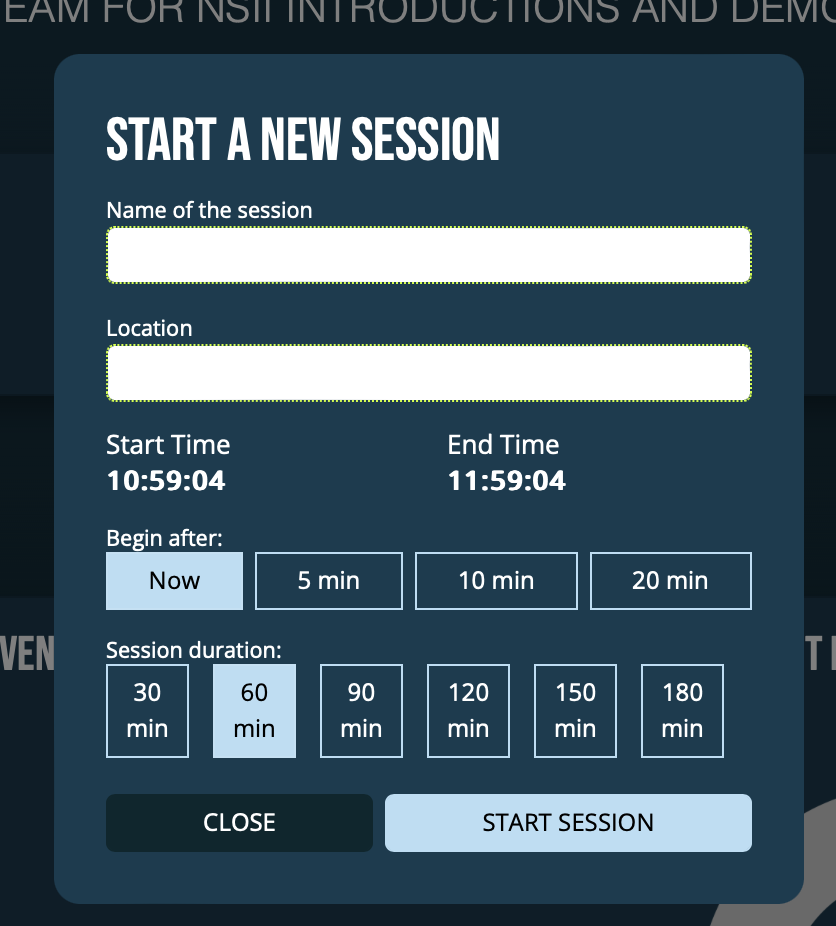
3. To start the session, click on “Play” button. “Start new session”
window opens, give the name to the session and select applicable details
and click “Start session”. End the session by clicking on “Stop” button
on “Session” box on the team’s landing page.
4. You can also add sessions before hand if you are not there to operate
the quick start and stop. Go to Team’s page, a small gear icon (with
word manage next to it in browser access) on the same level as
“Session”. Click on it. You can see “Your sessions” and “Add new
session”, click on “Add new session”. Fill in the upcoming session
details and click “Create session” to save the session.



D. Team’s data. Total team statistics and athlete top lists
Session or Season data on display
As default the team statistics will feature as SEASON’S accumulated data.
– If you wish to see the Team’s SESSION’S data, please choose “Session”
by clicking on the text underneath session quick start banner. The Team
cumulated statistics shown below is indicated by the underlined white text “Season” or “Session”.
– You can browse different seasons and sessions by clicking the arrows
next to the season’s information you current have on display. Earlier
sessions, click on arrow to the left. Later sessions, click on arrow to
the right.

Team’s cumulated graphical statistics
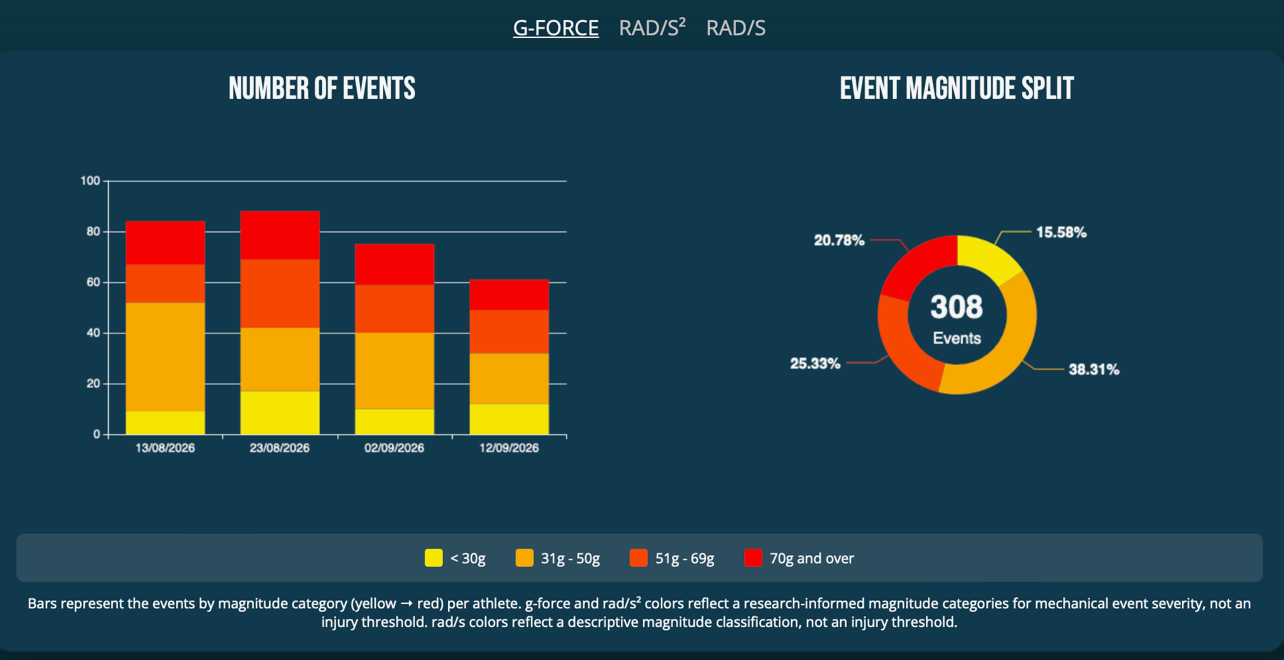
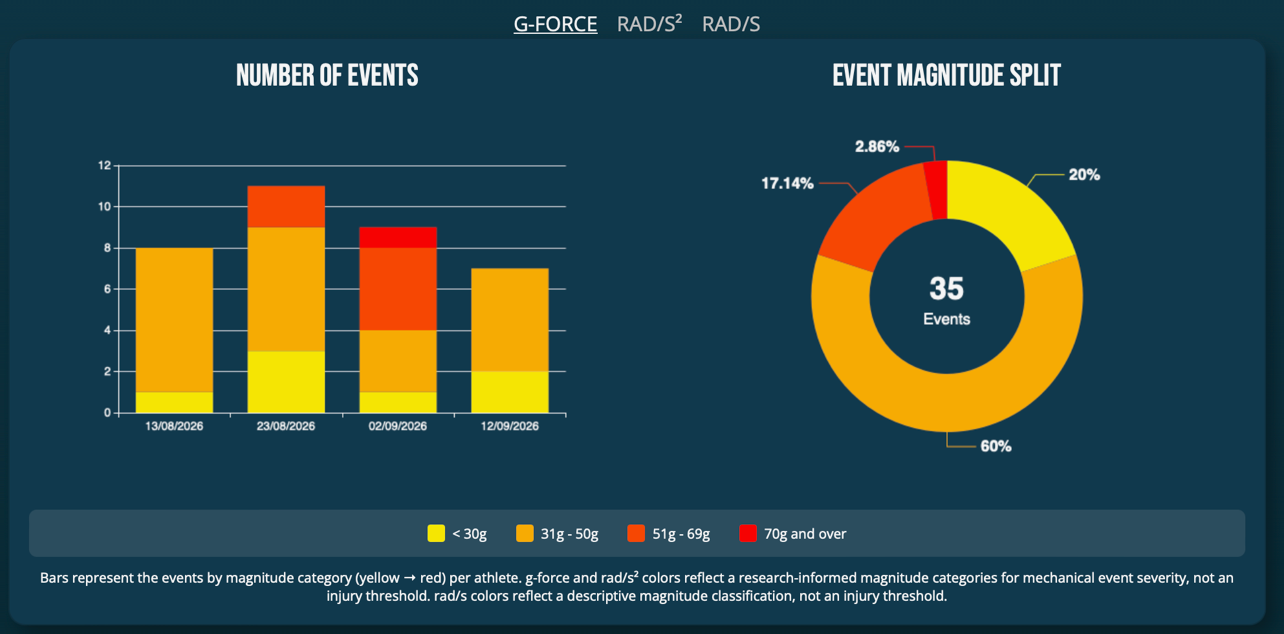
In “Team statistics” you can see Team’s total accumulated information as “Number of events” and “Event magnitude split”. You can see these by G-FORCE, RAD/S², RAD/S. Now showing is underlined and you can change the parameter by clicking in it.
NEW:
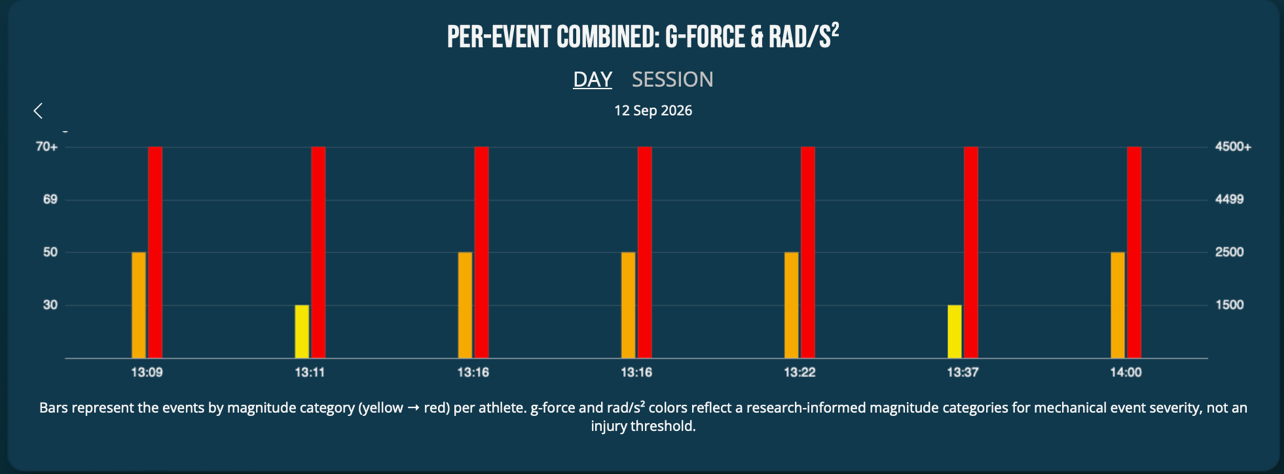
– Per-event combined: g-force & rad/s² show each event recorded combining the visual representation of g-force & rad/s²
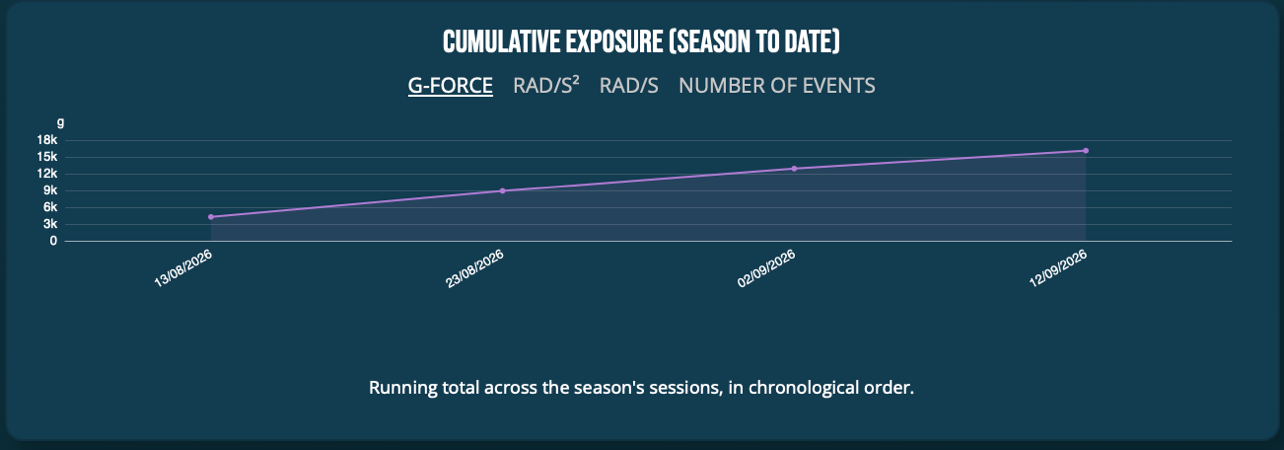
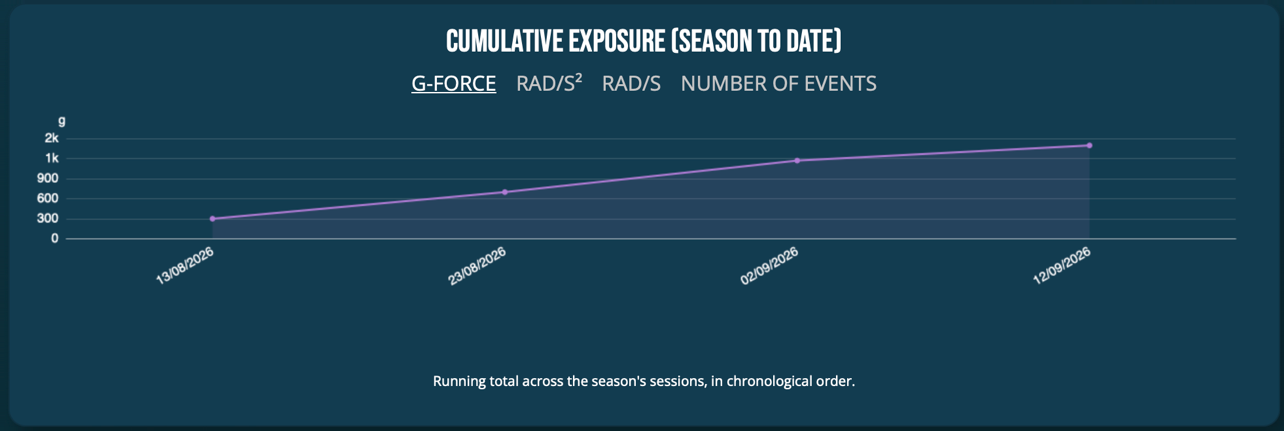
– Cumulative exposure (season to date) is available in G-FORCE, RAD/S², RAD/S. Now showing is underlined and you can change the parameter by clicking in it.
– Athlete comparisons: as described above.
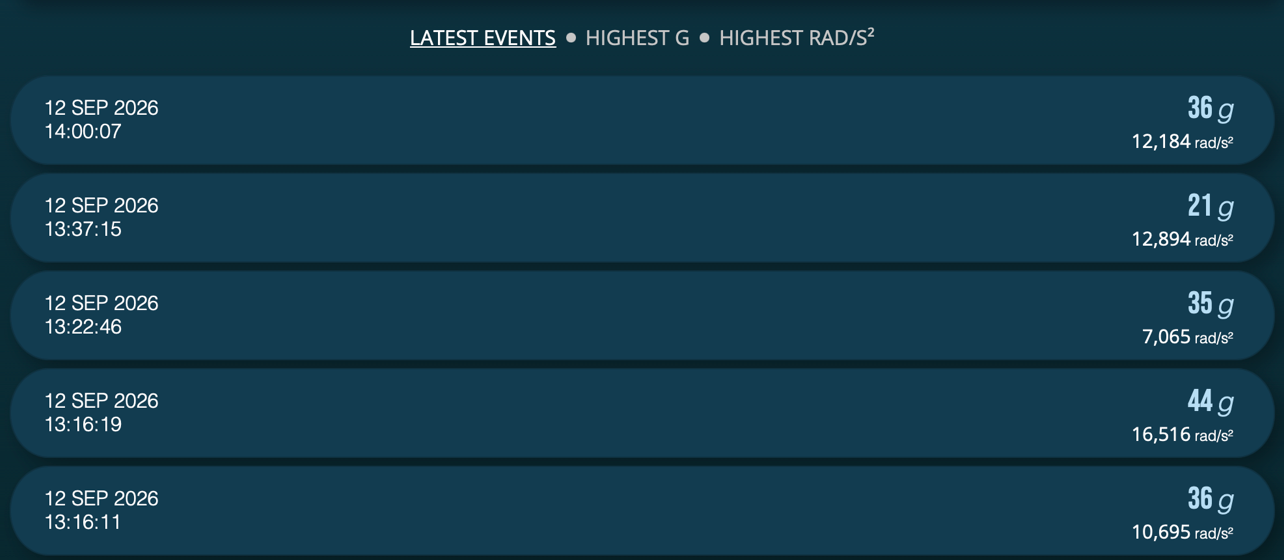
– Events listing: “Latest events” feature all events measured in chronological order. “Highest G” listing displays all events in the order of g-force magnitude. “Highest RAD/S²” listing displays all events in the order of RAD/S² magnitude.
NOTE:
– Bars represent the events by magnitude category (yellow → red) per athlete. g-force and rad/s² colors reflect a research-informed magnitude categories for mechanical event severity, not an injury threshold. rad/s colors reflect a descriptive magnitude classification, not an injury threshold.
– Population modifier note
The colors represent magnitude categories for mechanical event severity (yellow → red), not an injury threshold. Categories derived primarily from adult male athlete data, which represents the majority of existing research. These categories have been calibrated to be more applicable across populations.
However it is integral to note that:
* Female and youth athletes experience brain injuries at meaningfully lower absolute values than males in comparable sports. Warrant elevated caution.
* No force value can be interpreted as definitively safe.
* Always prioritise clinical assessment over sensor data.
* Measured linear and rotational acceleration or velocity do not accurately predict sport-related concussion. No single biomechanical threshold has been established.
– Warning!
ACT Head Impact Tracker is a measurement device for mechanical event severity.
ACT Head Impact Tracker is not a medical device and does not diagnose, prevent, or treat concussion or any other brain injury. In a suspected head injury, remove the athlete from play and seek assessment by a licensed medical professional.
Athletes’ listings
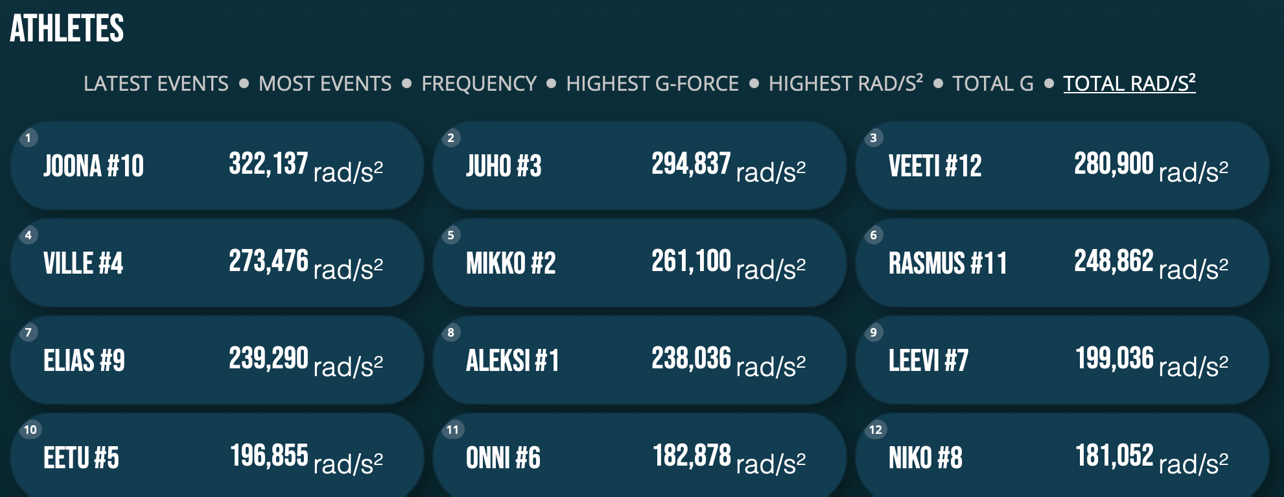
All athletes in the team are ranked in 7 listings. You can choose which listing you wish to see by clicking on the text just below “Athletes”. The listings are:
“Latest events”: the athlete with latest recorded event is featuring on top of the list. The other athletes below in descending order. Latest impacts is the default listing.
“Most events”: The athlete with most 10g or over events in selected session/season will feature on top of the list, other athletes below in descending order.
“Frequency”: The athlete with highest frequency of events per session will feature on top of the list, other athletes below in descending order.
“Highest g-force”: The athlete with highest magnitude g-force event in selected session/season will feature on top of the list, other athletes below in descending order.
“Highest RAD/S²”: The athlete with highest magnitude angular acceleration rad/s2 event in selected session/season will feature on top of the list, other athletes below in descending order. If the sensor in the profile do not measure angular forces, they are not included nor shown.
“Total g-force”: The athlete with highest total cumulative g-force load season to date will feature on top of the list, other athletes below in descending order.
“Total RAD/S²”: The athlete with highest total cumulative RAD/S² load season to date will feature on top of the list, other athletes below in descending order.
Athletes’ individual cumulative total data
Click on any Profile in any of the listings to see respective Profile’s cumulative totals.
In “Profile statistics” you can see Athlete’s total accumulated as “Number of events” and “Event magnitude split”. You can see these by G-FORCE, RAD/S², RAD/S. Now showing is underlined and you can change the parameter by clicking in it.
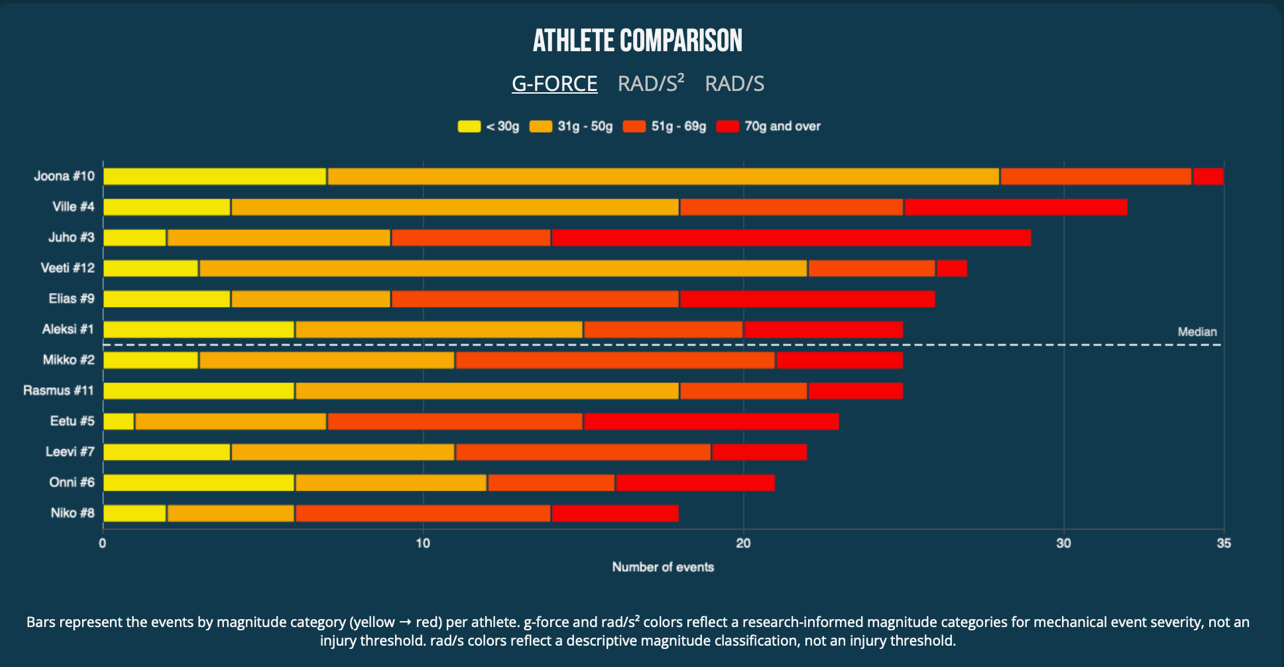
NEW: Athlete comparison will show you:
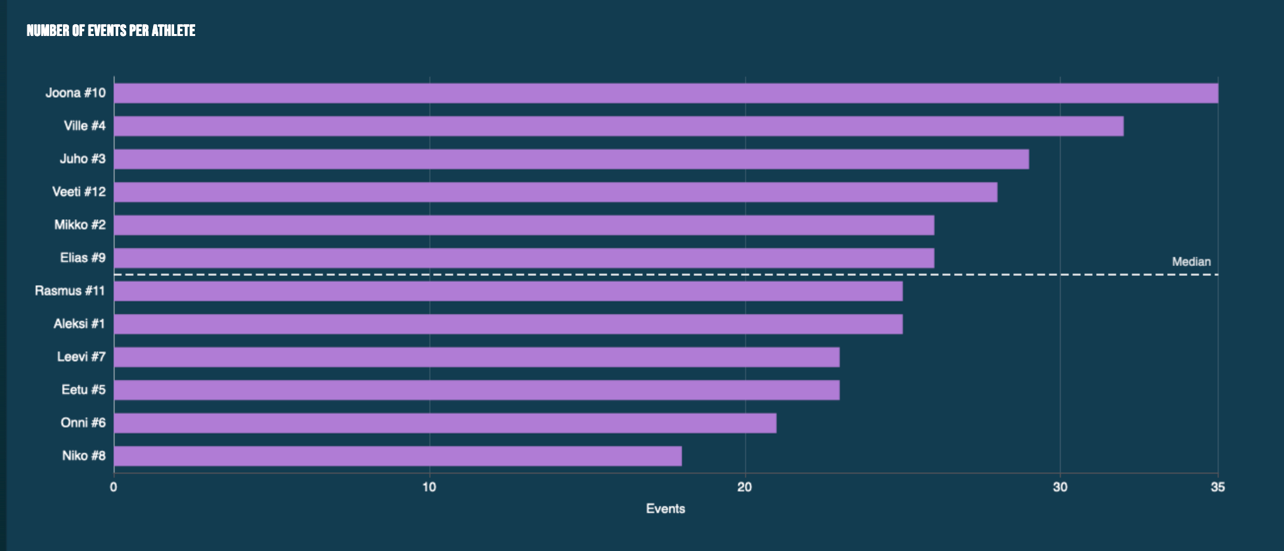
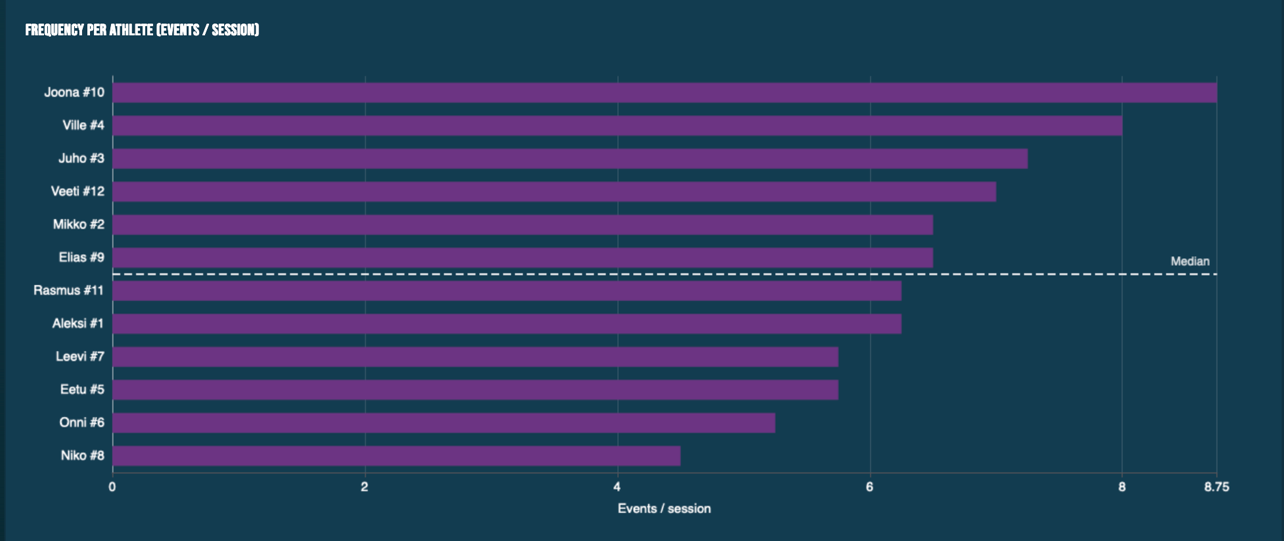
– Number of events by magnitude category G-FORCE, RAD/S², RAD/S > now showing is underlined and you can change the parameter by clicking in it. The higher on the list an athlete is, the bigger the load.
– Number of the events is now also put into a get a comparison at one glance graphical illustration showing each athlete in the team. The higher on the list an athlete is, the bigger the number of events.
– Frequency of the events per session on each athlete in the team. The higher on the list an athlete is, the higher the frequency of the events.
– Cumulative exposure (season to date) graph describes team total cumulative exposure as running total across the season’s sessions, in chronological order.
– Bars represent the events by magnitude category (yellow → red) per athlete. g-force and rad/s² colors reflect a research-informed magnitude categories for mechanical event severity, not an injury threshold. rad/s colors reflect a descriptive magnitude classification, not an injury threshold.
– Population modifier note
The colors represent magnitude categories for mechanical event severity (yellow → red), not an injury threshold. Categories derived primarily from adult male athlete data, which represents the majority of existing research. These categories have been calibrated to be more applicable across populations.
However it is integral to note that:
* Female and youth athletes experience brain injuries at meaningfully lower absolute values than males in comparable sports. Warrant elevated caution.
* No force value can be interpreted as definitively safe.
* Always prioritise clinical assessment over sensor data.
* Measured linear and rotational acceleration or velocity do not accurately predict sport-related concussion. No single biomechanical threshold has been established.
– Warning!
ACT Head Impact Tracker is a measurement device for mechanical event severity.
ACT Head Impact Tracker is not a medical device and does not diagnose, prevent, or treat concussion or any other brain injury. In a suspected head injury, remove the athlete from play and seek assessment by a licensed medical professional.
Head sensor 34
How to turn the sensor on and off? What does the led light tell me?
- Switch the sensor on by pressing the on/off- button once slowly and firmly. Red led-light next to the button starts blinking in slow even frequency to indicate the sensor is on.
- Turn sensor off by pressing the on/off-button twice slowly and firmly. Wait to see one long red led-light signal and then no more blinking to ensure the sensor is switched off
- If the led light does not come on at all, the battery is empty. Replace it with fresh coin cell battery.
- Led light might also either stay on (i.e. not blinking but constantly on), or it might blink in odd frequency (i.e. there is no clear even pattern to it). If this happens 1st try changing the battery. If the led light is still staying on or the odd pace blinking persists, switch the sensor off, remove the battery and let it rest for a while. Try switching the sensors off and back on once more. If the led light is still constantly on, or the odd blinking continues, the head sensor is very likely damaged and needs to be replaced.
Can I access my data by computer or tablet computer? Can I export my data from the App?
Yes you can. Use Web User Interface via Browser Access like this:
1. Click “Browser Access” on the bottom of www.act-tracker.com website.
2. Type in your User Account credentials (UserID and password)
3. Scroll down to “Your Profiles” and click on the one you wish to view in more detail.
4. Click on any event in the history listing to get more data on that specific event
5. If you want to add notes to the event or mark an event faulty (i.e. a false positive event occurred), you can do it here by typing the notes in the “Notes” box, or ticking the box next to “Flag as faulty impact”. The individual measuring points are featuring in the bottom of the event’s page.
Exporting your data
You can export the data by using “Export Tool” which you can find on a pop-up window when you click on your account UserID on the top right hand corner. NOTE: all your data will be exported.
How to wear ACT Head Impact Tracker head sensor with a helmet?
ACT Head Impact Tracker head sensor and head sensor Pro measure forces on what it is attached to. Hence we strongly recommend attaching head sensor on a head with a tight-fitting head accessory of user’s choosing, also when used with a helmet. To maximize the measurement accuracy, ensure that sensor do not move on its own, and nothing taps, klicks, or hits on the sensor. Head bands and Docks specifically designed for the head sensor can be purchased in the webstore in www.act-tracker.com.
Place the head sensor so that its head side (i.e. the side with the foam, on/off-button and led-light) is towards your head. Place the head sensor on the back and side of the head, on the more even area behind an ear for example. Do not wear head sensor on an area where direct impacts or blows may occur, or if there is pressure (for example if the sensor is places between the helmet and a head). Not suitable places to wear the sensor are for example: a forehead, a temple, or the back of your head.
The head sensor can be attached to almost any kind of head accessory or wear with hook and loop (Velcro) -tape, or similar. The back panel of the head sensor has an adhesive surface that you can use by removing the protective film on top of it. We recommend that you use the adhesive surface to attach one piece of hook side of the hook and loop -tape, with which you can attach the head sensor to the ACT Head Impact Tracker headband or other head accessory.
If you consider attaching head sensor to a helmet, refer to your helmet’s User Manual, Owner’s Guide and website. Your helmet’s warranty might be compromised if you attach anything to it. Always follow the helmet manufacturer’s instructions on safe helmet use. Only use a helmet that meets the applicable safety standard when you use a helmet with the head sensor.
NOTE: If you attach sensor on a helmet, the magnitude measurement accuracy might be compromised.

Helmet with sensor box (weight 15 g)
Can I change Profile information or move sensor to another Profile?
In Android app:
No, you cannot. We recommend to use coding for the profile names such as GP1, GP2, GP3 and so forth. This will protect the privacy of the users, and allow to change sensors from one user to another in a seamless way.
In iOS App and in Browser access:
Yes you can chage the profile data, but you cannot move sensor to another profile.
To change the Profile data:
1. Click on the profile you wish to change.
2. Click on small gear icon on the right top corner
3. Manage Profile -window opens. Click “Edit Profile button”.
4. Make changes you wish to do and click “Save Profile” to sva the changes.
What smartphone devices are compatible with ACT Head Impact Tracker?
iPhones and Android phones with A10 and newer operatings system should work with ACT Head Impact mobile app, but we have not validated the functionality with all the devices, systems and settings which might impact on the system functionality. Also iPads work, but the reach of Bluetooth® wireless communication reach tends to be shorter in hem, so we recommend using mobile phones when listening to the head sensors.
The key for system functionality is to have the correct settings in your mobile device and for ACT Head Impact Tracker App. They vary between the different operating systems and may be changed in any mobile device OS update. If your app stops workig after such update, please let us know in contact(at)norspo.com and we can try to address the issue as soon as possible.
Thank you for your help!
Setting up ACT Head Impact Tracker App in your mobile phone
1. Give ACT Head Impact Tracker App permissions in your phone as follows:
ANDROID phones
a.) Give ACT App permission to use “Bluetooth” and “Location”
b.) Give ACT App permission to use “Specific Location” if applicable. “Specific location” can be found for example in “General Settings” > Applications > ACT Head Impact Tracker > Permissions > Location > If you find here “Use specific location”, it must be on and active.
c.) Give App permission to use “Nearby devices” when applicable.
d.) If it is not possible to use always with Wi-Fi, please ensure ACT App has permission to use mobile data.
iPHONES
a.) Give ACT App permission to use “Bluetooth” and “Location”.
b.) Give your phone’s Bluetooth® permission to connect to new devices. When your phone is asking this in ACT App > give permission. You can check the permission status in “general settings” > Applications > ACT > Bluetooth permission ( or “allow ACT to access”) is active and on.
c.) If you want to receive ACT’s notifications on the events ensure you have given ACT app the permission to send notifications. “Allow notifications” should be active and on.
d.) If it is not possible to use always with Wi-Fi, please ensure ACT App has permission to use mobile data.
How to add sensor to profile on your user account
To add and use ACT Head Impact Tracker head sensor, you have to have User Account and Profile on your User Account. You add head sensor to the Profile of your choosing.
iOS
1. Click on Profile you wish add sensor to on App’s landing page.
2. Click on “add new sensor” and fill in the information requested.
3. When you get to “Activate the new sensor”, insert battery to the sensor, switch the sensor off and back on, and click “Activate” button in the App. If the App cannot find any sensor, switch the sensor off and back on, and try again. If the App finds more than one sensor, switch off all the other sensors than the one you want to register and try again.
NOTE: You can register the head sensor only once, and to one Profile only. It is not possible to remove or change the head sensor to another Profile once registered.
ANDROID
1. Click on Profile you wish add sensor to on App’s landing page.
2. Click on green bullet with +-sign on it on “Sensors” block > Click “Add sensor” so that ”Activate the sensor page opens.
3. Insert battery to the sensor, switch it off and back on > Click ”Continue” > Wait for ”Found 1 sensors” text to appear. > Click ”Continue” > Wait for ”Connected to 1/1 sensors” appear > Type the 6-number serial number also acting as registration code to the line > Click ”Continue” If the App can not find any sensor, switch the sensor off and back on, and try again. If the App finds more than one sensors, switch off all the other sensors than the one you want to register and try again.
4. Choose the sport / discipline the sensor is primarily used for > Click “Continue”
5. Name your sensor or just leave the line blank > click “Finish”
6. Wait for “Configuring the sensor” to be completed before switching off the sensor or App.
7. App confirms “Sensor registered successfully” when registration is completed. Then you can switch off the sensor and can see it in “Sensors” listing on the Profile.
You are now all set and good to go. Sport safely!
NOTE: you cannot change Sensor information, nor move or remove Sensor once added to Profile.
How to attach head sensor to ACT Head Impact Tracker head band? How should I wear it with the head band?
- Turn the head band’s dock so that the all-black soft loop-side is facing upwards.
- Add the hook-side tape piece you received with the head sensor to the head sensor’s back side like this:
– Place the sensor on the table head-side down and back side up. The glue tape area on the sensor is covered by a yellow cover foil (1. Picture below)).
step 1. Take one piece of hook tape
step 2. Remove the yellow cover foil from the head sensor’s back

step 3. Remove the cover foil on hook tape piece’s adhesive.
step 4. Add the hook tape on top of the glue area on the head sensor as shown in picture 2.

3. Attach the head sensor on the loop side of the dock (back side). Switch on the sensor, put the head band on so that the sensor is between your head and the headband and you are good to go!
Important usage and safety information!
– Only place the head sensor in a location where direct impacts or blows do not occur, and where there is no pressure on it.
– Always place the head sensor so that its head side (i.e. the side with the foam, on/off-button and led-light) is towards your head.
– Place head sensor between the head and the head band.


I received hook and loop tape with the head sensor and the head band, how should I use it?
If you wish to attach ACT head Impact Tracker with a hook&loop
tape to a helmet or an accessory, add the hook-side tape piece you
received with the head sensor to the head sensor’s back side like this:
Place the sensor on the table head-side down and back side up. The glue
tape area on the sensor is covered by a yellow cover foil (1. Picture
below)).
step 1. Take one piece of hook tape
step 2. Remove the yellow cover foil from the head sensor’s back
step 3. Remove the cover foil on hook tape piece’s adhesive.
step 4. Add the hook tape on top of the glue area on the head sensor as shown in picture 2.
1.  2.

Attach the loop-side of the tape to the head wear you are planning to place it and to the location where no impacts occur.
The loop-side is already there on the ACT Head Impact Tracker Headband and Dock, hence no need for using loop-tape with them.
Attach the head sensor back side hook area to the loop area of the head wear, ensure the head side (side where the foam and on/off button are) of the head sensor is towards your head. Switch the head sensor on and off you go.
I want to give away or sell my head sensor to someone else. How to do it?
If you share the same User Account and can use the same profiles, no problem, just pass the sensor over and remember that now the Profile with the sensor is collecting someone else’s data. This could be the case within a family – passing the sensor to another family member, or within a team – passing the sensor from one player to another. To make this as smooth as possible we recommend to name the family’s profiles as 1, 2, 3, 4, … and those in the team GP1, GP2, GP3, … Mark the athletes in an excel sheet and in there the dates when the profiles were switched and to whom they then belong to.
If you would need to switch the sensor to new User Account or new profile – it is not possible. You can only register the head sensor once and to one User Account and Profile only. The head sensor cannot be removed or transferred to another User Account or Profile after registering it.
When does the head sensor’s one-time registration code expire?
There is no expiration date as such, but each code can be used only once, one time to register the head sensor to your user account and profile there.
Is there a temperature range for the head sensor to work properly?
The temperature range for the head sensor electronics is approximately from -10C to 40C. Please be aware that cold temperature may impact the battery and cause it to drain faster.
Is the head sensor waterproof?
No. It is not suitable for water sports or under water use.
When the head sensor’s hatch is properly closed and head sensor’s side
seams sealed, the head sensor is “weather and sweat proof”.
Can I deactivate the automatic switch off?
No, you cannot.
Why is there an automatic switch off after 180 minutes in the head sensor?
The head sensor measures and records all the events when it is switched on. If you forget to turn the sensor off, this might mean tens, or even hundreds of false positive events in your event history. It is possible to mark the events faulty (but requires a quite a bit of work if there is many of them), and it is not possible to entirely remove individual events from your event history, hence we included an automatic switch to help minimizing false positive events being recorded, for example during transportation and handling.
How do I know how much “juice” there is left in my head sensor’s battery?
1. Led light on the head sensor
Battery level is too low, if you switch the head sensor on and the led light starts blinking in fast pace. Change
battery, or ACT Head Impact Tracker does not work as intended.
If the led light does not come on at all, the battery is empty. Replace it with fresh coin cell battery.
Led light might also either stay on (i.e. not blinking but constantly on), or it might blink in odd frequency (i.e. there is no clear pace to it) – if this happens change the battery. If the led light is still staying on or the odd pace blinking persists, switch sensor off, remove the battery and let it rest for a while. Try switching the sensors on, off and back on once more, if the led light is still constantly on or the odd blinking still continues, the head sensor is very likely damaged and needs to be replaced.
2. Battery level indicator in the App
In the App you can find battery level indicator for the sensors registered to it. You can find the indicators in the “Sensors” section next to each head sensor listed. How to update the App’s battery levels: Switch the head sensor on, open the App and see that connection between is established (usually but not in all mobile device brands and models, little ACT-icon appears on the upper corner of your smartphone screen), connection will update the head sensors’ battery level indicator within approximately 2 minutes.
3. Battery indicator in the Web User Interface
You can see the battery level also in the Web User Interface “previous impacts” listing. NOTE: the sensor is not operating when the level is below 2,5V. Some components will not work on lower voltage than this. The battery is not empty at this point and onwards, but it is too low in voltage for head sensor to function.
Can I use other devices featuring Bluetooth® wireless technology while using the head sensor?
Yes. The head sensor does not conflict with other Bluetooth® wireless technology connections. The connection is not on all the time, it only takes place in short bursts when needed.
How does the head sensor connect with the mobile device with app?
ACT Head Impact Tracker head sensor features Bluetooth® LE (low energy) wireless technology.
What types of electronics are there in the head sensor?
Head sensors have an accelerometer for linear forces measurement. ACT
Head Impact Tracker head sensor Pro also has gyroscope for angular
movement measurement.
There is no GPS in the head sensor.
Can I use it for my toddler learning to walk?
Absolutely not.
The head sensor is not suitable for children under 36 months of age.
Keep the head sensor and packaging out of reach of children and animals.
Contains small parts. Risk of suffocation!
Also coin cell battery is a great risk for children and animals, batteries and devices powered by them must always be kept out of reach of children and animals. Swallowing a coin cell battery can lead to chemical burns, perforation of soft tissue, even death. If ingestion or inserting a coin cell battery into any body part is suspected, seek medical attention immediately. More information on the safety and toxicology of the coin cell battery on the battery’s manufacturer’s website or in the web.
Is head sensor safe to use?
We created ACT Head Impact Tracker to improve the wellbeing and health of athletes. However, some risks may be related to the head sensor and its use:
- The head sensor contains hard parts. These are the electronics, i.e. plastic circuit board with electronic components on it, and a standard CR2032 coin cell battery.
- The risks while using the sensor can be minimized by placing the head sensor in a location where direct impacts do not occur. Do not place the head sensor on the forehead, on the temple or on the back of your head for example.
- The head sensor is not suitable for children under 36 months of age. Keep the head sensor out of reach of children and animals. Contains small parts. Risk of suffocation!
- Coincell batteries are dangerous and a great risk for small children and animals. Batteries and devices using them must always be kept out of reach of children and animals. Swallowing a coin cell battery can lead to chemical burns, perforation of soft tissue, even death. If ingestion or inserting a coin cell battery into any body part is suspected, seek medical attention immediately. More information on the safety and toxicology of the coin cell battery on the battery’s manufacturer’s website or in the web.
- The plastic casing is made of silicone, and the foam on the head side is closed cell EPDM. Our head sensor is in compliance with European Union Directive (2011/65/EU) on the restriction on the use of certain hazardous substances in electrical and electronics equipment (RoHS).
- The head sensors are both CE, FCC and IC certified and compliant. CE marking is an administrative marking that indicates conformity with health, safety, and environmental protection standards for products sold within the European Economic Area (EEA).
- ACT Head Impact Tracker head sensor or head sensor Pro is not a household product. Head sensor is powered by CR2032 coin cell battery and the battery compartment hatch is not secured with a screw or other such, and it does not require a tool to open the battery compartment hatch.
- Do not use or store the head sensor in households or other venues where small children may be in and get access to it. Head sensor is a professional product to be used and stored in the venues where and in the manner which no small children can have access to it.
– Keep the product and packaging out of reach of children and animals. Risk of suffocation!
– Not suitable for children under 36 months of age. Contains small parts. Risk of suffocation!
– Check the product for damage and wear before every use.
– Check that all parts and locking mechanisms are secure before each use.
– The product may be used only when in good working order and condition.
– Use in adult supervision.
– Do not modify the head sensor in any way. Use only the way instructed.
WARNING REGARDING CR2032 COIN CELL BATTERY
– Keep out of reach of children and animals.
– Swallowing and ingestion can lead to chemical burns, perforation of intestinal soft tissues and death.
– If you suspect a battery has been swallowed or entered in any body part, seek medical attention immediately. CAUTION: RISK OF EXPLOSION IF BATTERY IS REPLACED BY AN INCORRECT TYPE. DISPOSE OF USED BATTERIES ACCORDING TO THE INSTRUCTIONS.
WARNING!
This product contains a CR2032 lithium coin battery. Improper handling or misuse poses risks, including choking, intestine erosion, or other serious injury if swallowed. To ensure safety:
– Always secure the battery compartment. Removal should require a tool (e.g., screwdriver) or two independent simultaneous motions.
– Store new and used batteries out of reach of children.
– In case of ingestion, seek immediate medical attention.
– Dispose of used batteries promptly and safely, in compliance with local and federal regulations.
Battery Disposal Instructions:
– Lithium-ion batteries should not be disposed of in household garbage or recycling bins.
– To prevent fires, tape the terminals of used batteries and place them in separate plastic bags.
– Dispose of lithium-ion batteries at designated recycling or household hazardous waste collection points.
– Follow the Universal Waste Rule for safe disposal and recycling of lithium-ion batteries. Follow all instructions and warnings to reduce the risk of injury, especially in households with children.
Do I need a registration code for the head sensor to register it in the app?
Yes, you need to enter a head sensor registration code in the App for each head sensor you add. You can find the unique registration code (also acting as serial number of the head sensor) on the product label, which is a white sticker underneath the battery hatch. Open the hatch and you can see the white sticker on the lid. Registration code is a 6-digit code on the product label.
Please note: The registration codes are unique to each head sensor. Each head sensor comes with a one-time registration code. This means you can only add the head sensor once and to one User Account and Profile only. The head sensor cannot be removed or transferred to another User Account or Profile after registering it.
Should I be concerned about radiation from the head sensor?
The head sensor uses Low-Energy Bluetooth® wireless technology for the communication and is rated safe for its use. The head sensors are also CE, FCC and IC certified.
An event happened but there is no data coming to the App. How to empty event data from head sensor’s memory?
Every once so often the event information is not being swiftly delivered from the sensor to the App and Cloud. This means the event information is not featuring in the App or in the Browser Access tools.
The most common reasons for the information delivery delays are:
1. Sensor is off, or on Tracker mode.
Switch on the sensor, or switch off the tracker mode (or the sensor, which will switch off the tracker mode as well).
2. Sensor is out of reach of the smart phone’s Bluetooth® wireless communication.
Take the mobile device with the App closer to the sensors.
3. Bluetooth® wireless communication is not on.
Turn on Bluetooth® wireless communication in your mobile device with App.
4. ACT Head Impact Tracker App does not have permissions it needs to have to function in your mobile phone.
Give ACT Head Impact Tracker App permissions in your phone as follows:
ANDROID phones
a.) Give ACT App permission to use “Bluetooth” and “Location”
b.) Give ACT App permission to use “Specific Location” if applicable. “Specific location” can be found for example in “General Settings” > Applications > ACT Head Impact Tracker > Permissions > Location > If you find here “Use specific location”, it must be on and active.
c.) Give App permission to use “Nearby devices” when applicable.
d.) If it is not possible to use always with Wi-Fi, please ensure ACT App has permission to use mobile data.
iPHONES
a.) Give ACT App permission to use “Bluetooth” and “Location”.
b.) Give your phone’s Bluetooth® permission to connect to new devices. When your phone is asking this in ACT App > give permission. You can check the permission status in “general settings” > Applications > ACT > Bluetooth permission ( or “allow ACT to access”) is active and on.
c.) If you want to receive ACT’s notifications on the events ensure you have given ACT app the permission to send notifications. “Allow notifications” should be active and on.
d.) If it is not possible to use always with Wi-Fi, please ensure ACT App has permission to use mobile data.
5. If you have Android mobile device, use Active scanning to listen to the sensors. You can switch it on by clicking menu (3 bars on the left top hand corner).
6. Smartphone has no or weak mobile data connection, Wi-Fi connection is weak or not available.
If you do not have strong mobile data or Wi-Fi connection available, the data will not be transferred from sensor to the App or Cloud. The near-real-time data delivery is not possible. You can get the saved data from the head sensors once you have all the data transfer technologies required available.
You might also need to have “Nearby devices” on and active in your mobile device.
Whatever the reason for the data delivery delay, it is a great idea to check if any data is missing and empty saved data from the sensor(s) on regular basis, and do it every time before you are about to run out of battery or exchange the batter as event data time stamps will be severely affected by the sensor’s power outage! This is how you can do it:
1. Ensure your smartphone with ACT App has Bluetooth® wireless communication on, permission to use Location and “Specific location” if applicable. You might also need to activate “Nearby devices”.
2. Ensure the phone is connected to strong Wi-Fi, or has strong mobile data connection and roaming if applicable.
3. Open ACT Head Impact Tracker App and keep App on the top, the phone active and screen lighted.
4. Take sensor(s) to the close proximity of the phone and switch it/them on.
5. Open Profiles one by one and check the index numbers (grey text #XX on the right side) on events (you can find them in ”Impact History” event listing) to see if any number is missing. Index numbers are in ascending order from 1-265 and after that start from 1 again. If one or more numbers are missing, try emptying the sensor’s memory again on that profile. If events are still not appearing to the event listing, they have been removed to make space for new events and unfortunately their information cannot be retrieved nor displayed anymore.
How can I access profile’s event history and event data in App
There is lots of information on the impacts and forces acting on a head measured, calculated and available. To get the impact information in the App:
ANDROID
1. Choose the Profile you wish to see, click on it.
2. The Profile view opens with latest event on the top. Open ”Impact History” by clicking on green button with +sign on it.
3. Choose the event you wish to look closer at, click on it.4. Event view opens with graphs on Total recorded g-force during the measurement period, Axial g-forces during the measurement period, and in ACT Head Impact Tracker Pro sensor also Rotation speed measured during measurement period.
iOS
1. Choose the Profile you wish to see, click on it.
2. Scroll down to “Impacts” and choose the event you wish to see.
3. Scroll down to flag as “faulty” or to add notes.
4. Click on Profile name on the top of the screen to return to Profile page
What is Tracker mode, and how to activate and deactivate it
NOTE! Tracker mode is available in head sensor version 1.2, and later versions, and in Pro version. Head sensor version 1.2. was launched in September 2022, hence if you purchased yours before that there is no Tracker mode functionality to them.
We recommend using Tracker mode if you do not have Wi-Fi connection or mobile data connection available throughout the session. It
is not necessary to use Tracker mode, the sensors will save unsent data
in them. But using Tracker mode will save energy and prolong the
battery’s life span.
What happens when the sensor is on Tracker mode is:
1. When the sensor detects an event with 10g or over, it
saves the event information. It makes no attempt to deliver the data to
the App. This means real time impact information will not be available.
2. After the session switch all sensors off and switch them back on one
by one so that the sensor is in the proximity to the mobile device with
the App – which is connected to Wi-Fi or has mobile data (and roaming if
needed) connection. The sensor will transfer all the impacts from its
memory (depending on the number of impacts, this can take from few
seconds to approximately 1 minute). It is recommended to do this every
time before the battery is changed, after the battery is changed the
time stamp of impacts saved prior the battery change will not be
accurate.
To activate Tracker mode:
1. Switch the sensor on by pushing on/off button once. Check that the
LED light starts blinking in slow frequency to indicate that the sensor
is on (now on a normal mode).
2. Push the on/off button once while keeping the button pressed for
about 2 seconds (keep the button pressed for 2 seconds) until the LED
light blinks 3 long blinks and then starts blinking in slow frequency (1
blink / 5 sec). Tracker mode is activated, no real time impact data
will be sent, and impact information will be saved in the head sensor’s
memory. Please note: you first have to switch the sensor on and only
then Tracker mode can be activated.
Push the on/off button once while keeping the button pressed for about 2 seconds (keep the button pressed for 2 seconds) until the LED light blinks 3 long blinks and then starts blinking in slow frequency (1 blink / 5 sec). Tracker mode is activated, no real time impact data will be sent, and impact information will be saved in the head sensor’s memory. Please note: you first have to switch the sensor on and only then Tracker mode can be activated.
To deactivate Tracker mode:
1. Push the on/off button once while keeping the button pressed for
about 2 seconds so that you can see the LED light activating (then
release the button).
2. Led light blinks 4 long blinks to indicate Tracker mode is
deactivated and sensor is back on normal mode (the slow continuous LED
light blinking). Alternatively, you can turn off the sensor when it is
on Tracker mode.
Inserting and removing the coin cell battery
- Open the battery compartment hatch on the back side by lifting it upwards.
- Slide in the coin cell battery underneath the silver holder bridge. Make sure the plus-side of the battery is upwards towards you, and away from the circuit board.
- Make sure the battery is set exactly on top of the silver-colored circle underneath the bridge. Don’t push the battery too far or you might damage the electronics.
- Slide the battery out by pushing it from the side on your fingertip or nail.
- Close the hatch by pressing the sides firmly together to seal the locks on them.
- Check that sides are seamlessly connected with each other.
- The sensor turns on when battery is applied, but it may be that not all the components do. Switch the sensor off and back on before use.
ACT Head Impact Tracker head sensor or head sensor Pro is not a household product. Head sensor is powered by CR2032 coin cell battery and the battery compartment hatch is not secured with a screw or other such, and it does not require a tool to open the battery compartment hatch.
Do not use or store the head sensor in households or other venues where small children may be in and get access to it. Head sensor is a professional product to be used and stored in the venues where and in the manner which no small children or animals can have access to it.
– Keep the product and packaging out of reach of children and animals. Risk of suffocation!
– Not suitable for children under 36 months of age. Contains small parts. Risk of suffocation!
– Check the product for damage and wear before every use.
– Check that all parts and locking mechanisms are secure before each use.
– The product may be used only when in good working order and condition.
– Use in adult supervision.
– Do not modify the head sensor in any way. Use only the way instructed.
WARNING REGARDING CR2032 COIN CELL BATTERY
– Keep out of reach of children and animals.
– Swallowing and ingestion can lead to chemical burns, perforation of intestinal soft tissues and death.
– If you suspect a battery has been swallowed or entered in any body part, seek medical attention immediately. CAUTION: RISK OF EXPLOSION IF BATTERY IS REPLACED BY AN INCORRECT TYPE. DISPOSE OF USED BATTERIES ACCORDING TO THE INSTRUCTIONS.
WARNING!
This product contains a CR2032 lithium coin battery. Improper handling or misuse poses risks, including choking, intestine erosion, or other serious injury if swallowed. To ensure safety:
– Always secure the battery compartment. Removal should require a tool (e.g., screwdriver) or two independent simultaneous motions.
– Store new and used batteries out of reach of children.
– In case of ingestion, seek immediate medical attention.
– Dispose of used batteries promptly and safely, in compliance with local and federal regulations.
Battery Disposal Instructions:
– Lithium-ion batteries should not be disposed of in household garbage or recycling bins.
– To prevent fires, tape the terminals of used batteries and place them in separate plastic bags.
– Dispose of lithium-ion batteries at designated recycling or household hazardous waste collection points.
– Follow the Universal Waste Rule for safe disposal and recycling of lithium-ion batteries. Follow all instructions and warnings to reduce the risk of injury, especially in households with children.
Head sensor setup and wear
1. Take out the head sensor. Place it on the table head side down and back side with added glued surface on it on top.
2. Take out one piece of the hook tape you received with the head sensor, head band or dock.
3. Remove the cover foil on the hook tape.
4. Remove the cover foil on the head sensor’s glue surface.
5. Place the hook tape piece directly on top of the sensor’s glue surface area. Use only one piece of the hook tape at the time, save the second piece you might have received for later use if needed.
6. The head sensor is placed as shown in the picture. Place the sensor next to the head, in between the head and head band. The headband logo shows to the outside, the head sensor is on the head side, underneath the head band.
Place the head sensor only on a location where no impacts occur. If you feel pressure or discomfort when wearing, change the sensor location.


How to attach the head sensor to a helmet?
Attach a hook side of the hook & loop (Velcro) tape on your head sensor back side. You can attach head sensor with hook tape on ACT Head Impact Tracker head band or dock, which have Loop-sides readily in them, or attach head sensor to a loop-side tape you insert to a helmet or other type of chunky headwear.
Important usage and safety information!
– The head sensor is measuring on what it is attached to. If you attach it to the helmet, it will measure the forces and impacts on the helmet, which is many times different from the impacts and forces acting on your head underneath the helmet.
– If you consider attaching head sensor to a helmet, refer to your helmet’s User Manual, Owner’s Guide or corresponding document to verify if it is possible. Always follow the helmet manufacturer’s instructions on safe helmet use. Only use a helmet that meets the applicable safety standards when you use a helmet with ACT Head Impact Tracker head sensor.
– To improve the measurement accuracy on the forces and impacts acting on a head, we recommend using a head accessory to place the head sensor also when using with a helmet.
– Attach head sensor on a hard and even surface, head sensor preferably inside the helmet. Do not modify the helmet any way to fit the sensor to it, or you might loose the warranty of the helmet, or some of the safety features on it.
– We recommend attaching the sensor with hook and loop tape so that the sensor can be removed easily for the battery exchange and other handling.
– If you feel discomfort or pressure, the head sensor is not in a right location.
Place the head sensor only in a location where direct impacts do not occur!
Examples of head sensor attachment on the helmet
How long does the battery last?
CR2032 coin cell battery will last in ACT Head Impact Tracker head sensor anything between 100-200 hours on-time (i.e. when the sensor is on), depending on the battery used. Same battery will last in ACT Head Impact Tracker head sensor Pro between 60-80 hours on-time, or about 3 months (if sensor is not being used).
How to wear ACT Head Impact Tracker head sensor
ACT Head Impact Tracker head sensor and head sensor Pro measure forces on what it is attached to. Hence we strongly recommend attaching head sensor on a head with a tight-fitting head accessory of user’s choosing, also when used with a helmet. To maximize the measurement accuracy, ensure that sensor do not move on its own, and nothing taps, klicks, or hits on the sensor. Head bands and Docks specifically designed for the head sensor can be purchased in the webstore in www.act-tracker.com.
Place the head sensor so that its head side (i.e. the side with the foam, on/off-button and led-light) is towards your head. Place the head sensor on the back and side of the head, on the more even area behind an ear for example. Do not wear head sensor on an area where direct impacts or blows may occur, or if there is pressure (for example if the sensor is places between the helmet and a head). Not suitable places to wear the sensor are for example: a forehead, a temple, or the back of your head.
The head sensor can be attached to almost any kind of head accessory or wear with hook and loop (Velcro) -tape, or similar. The back panel of the head sensor has an adhesive surface that you can use by removing the protective film on top of it. We recommend that you use the adhesive surface to attach one piece of hook side of the hook and loop -tape, with which you can attach the head sensor to the ACT Head Impact Tracker headband or other head accessory.
If you consider attaching head sensor to a helmet, refer to your helmet’s User Manual, Owner’s Guide and website. Your helmet’s warranty might be compromised if you attach anything to it. Always follow the helmet manufacturer’s instructions on safe helmet use. Only use a helmet that meets the applicable safety standard when you use a helmet with the head sensor.
NOTE: If you attach sensor on a helmet, the magnitude measurement accuracy might be compromised.
Helmet with sensor box (weight 15 g)
How to attach head sensor with the Dock? How to attach head sensor to my own head band?
ACT Head Impact Tracker Dock is an attachment accessory for ACT Head Impact Tracker head sensors. It has been specifically designed to accommodate ACT Head Impact Tracker head sensor using Hook&loop take that comes with the head sensor, and attach the head sensor to various head accessories like skinny hairbands, head bands and even helmets. This is how to use the Dock:
- Turn the Dock so that the all-black soft loop-side is facing upwards and logo side downwards.
- Separate the 2 parts in the dock by ripping the apart from the middle. Place the two parts on the table.

Add the hook-side tape piece you received with the head sensor to the head sensor’s back side like this:
Place the sensor on the table head-side down and back side up. The glue tape area on the sensor is covered by a yellow cover foil (1. Picture below)).
step 1. Take one piece of hook tape
step 2. Remove the yellow cover foil from the head sensor’s back

step 3. Remove the cover foil on hook tape piece’s adhesive.
step 4. Add the hook tape on top of the glue area on the head sensor as shown in picture 2.

- Place the bottom part of Dock (i.e. the part with no branding to it) underneath the headband, hair band or other stripe you wish to attach the head sensor into HOOK SIDE UPWARDS.
- Place the hair/headband/other stripe in the middle and on top of the Docks bottom piece hook side.
- Add Dock’s top side (i.e. the side with the branding on it) on top, logo side upwards. The the hair/head band/other stripe is in between the two Dock sides in the middle.

4. Press the dock sides firmly together and check the attachment is holding well. If the hair/head band/other stripe is too wide and you cannot attach the sides of Dock to each other firmly, the dock is not suitable to attach the head sensor to the accessory or stripe you have there.
5. Attach the head sensor on the loop side of the dock (back side). Switch on the sensor, put the head band on so that the sensor is between your head and the headband and you are good to go!

You can also use Dock to attach head sensor to a helmet. Important! Use only on stripes which are not hanging loose, but sit firmly and still! The head sensor must not move not tap somewhere when it is worn.

Important usage and safety information!
- Place the head sensor only in a location where impacts do not occur.
- Always place the head sensor so that its head side (i.e. the side with the foam, on/off-button and led-light) is towards your head.
- Place head sensor between the head and the head band/accessory.
ACT Head Impact Tracker head sensor attachment in floorball (PDF)
ACT Head Impact Tracker head sensor attachment in ice-hockey and in sports with similar helmets (PDF)
My sensor’s light is irregular, or steady light on, what’s the matter?
If sensor is fully functional, its led light is slowly and steadily blinking in low frequecy, about once in every 5 seconds.
If the sensor’s led light is blinking irregularly, faster or in uneven pace, the battery level is too low and you should immediately switch the battery.
If the led light is steadily on, not blinking ust stays on, try changing the battery. If the light is still steadily on, the sensor hardware is damaged and sensor is not functional.
Mobile application 35
Quick start guide – Head sensor & App
Setting up ACT Head Impact Tracker App in your mobile phone
Give ACT Head Impact Tracker App permissions in your phone as follows:
ANDROID phones
a.) Give ACT App permission to use “Bluetooth” and “Location”
b.) Give ACT App permission to use “Specific Location” if applicable. “Specific location” can be found for example in “General Settings” > Applications > ACT Head Impact Tracker > Permissions > Location > If you find here “Use specific location”, it must be on and active.
c.) Give App permission to use “Nearby devices” when applicable.
d.) If it is not possible to use always with Wi-Fi, please ensure ACT App has permission to use mobile data.
iPHONES
a.) Give ACT App permission to use “Bluetooth” and “Location”.
b.) Give your phone’s Bluetooth® permission to connect to new devices. When your phone is asking this in ACT App > give permission. You can check the permission status in “general settings” > Applications > ACT > Bluetooth permission ( or “allow ACT to access”) is active and on.
c.) If you want to receive ACT’s notifications on the events ensure you have given ACT app the permission to send notifications. “Allow notifications” should be active and on.
Always when you want to connect and listen to the sensors, ensure your phone is connected to Wi-Fi (LAN), or you have mobile data available. Ensure ACT App has permission to use mobile data.
Accessing your user account and data on tablets and computers
Use our Browser access: https://dashboard.act-tracker.com/login
Type in your user account ID and password to enter. Please note you will need mobile app and mobile phone to interact and collect data from the sensors.
Quick StartGuide
1. Buy CR2032 coin cell battery (or remove the plastic strip underneath the battery, if battery was included).
2. Download ACT Head Impact Tracker smartphone mobile App on your smartphone. Please note: The App’s compatibility with all and every smartphone brand and model has not been tested and cannot be guaranteed. See more information in our website www.act-tracker.com Help.
3. Create a User Account in the App. Your email will act as a User-ID. Make sure to store your password somewhere safe, it cannot be reset.
4. Create a Profile in your User Account to which you want to add the head sensor to.
In Android phones: Click “Add profile” and follow the App’s instructions in creating the Profile. Please note: You cannot remove or change the Profile once created.
In iPhones: Click “New profile” and follow the App’s instructions in creating the Profile. Please note: You cannot remove the Profile once created. You can change the information on the Profile information by clicking on a Profile > click on a picture of female screw to open a menu > click any information you want to change. Save the changes.
5. Give App permission to use Location, and “Specific Location” if applicable. “Specific location” can be found for example in “General Settings” > Applications > ACT Head Impact Tracker > Permissions > Location > If you find here “Use specific location”, it must be on and active. You also may have to give App permission to use “Nearby devices” when applicable.
In iPhone: you also must give phone’s Bluetooth® permission to connect to new devices.
6. Bluetooth® wireless connection must be enabled, on and active in your smartphone with the App always when using it with the sensor(s) and want to get the data in near-real-time.
7. Ensure mobile data and roaming (if needed) are enabled, on and active in your mobile device for the App and always when using it with the head sensor, or that you are connected to Wi-Fi.
8. Remove the head sensor from its package. Open the hatch. Remove the plastic strip in between the battery and the electronics by carefully pulling it off, or buy CR2032 coin cell battery if it was not included and insert the battery to the sensor via hatch on the short side (see illustrated instructions in the end of this document).
9. Locate the head sensor’s Serial number also acting as Registration code, which is on the product label underneath the battery hatch. Open the hatch and you will find the white sticker on the lid. Registration code is a 6-digit code on the product label.
10. Close the hatch by pressing all sides firmly together to seal the locks. Make sure the sides are seamlessly connected with each other before usage. Please note: Inserting the battery may turn the sensor on, but some components might not turn on. Before usage, switch the sensor off and back on.
11. Turn the head sensor on by pressing the on/off-button once slowly and firmly. The sensor is on when the small red LED light next to the button starts to blink in slow frequency. If the light blinks in high frequency (in fast pace), the battery is almost empty. Change the battery or ACT Head Impact Tracker might not work as intended. If the light does not come on at all or the light comes on, but it is not blinking, try with new battery. If the light still is not coming on at all, or the light comes on, but it is not blinking, the head sensor is not working as it is supposed to and should be replaced.
12. When the sensor is on, choose the Profile you want to add the sensor to and click on it.
In Android phones: We recommend to always use Active Scanning when listening to the sensors. It is necessary to use if your mobile device is not automatically connecting with the sensors (i.e. an event occurs, you are in Bluetooth® Wireless connection’s reach, but information is not appearing to the App). 1.) Start Active Scan: Click “Menu” (3 bars on the left upper hand corner) > Click “Start active scan” > text turns to “Stop active scan” = Active scanning is on until you switch it off, or shut down ACT Head Impact Tracker App. 2.) Stop Active scan: Click “Stop active scan”. > Text turns to “Start active scan” = Active scanning is off. If Active Scan is on, but event information is not received, try switching Active scanning off and turning it back on again.
Adding sensor In Android phones: Click then green button next to “Sensors”, and then the “Add Sensor” button. The App has found the sensor when it says: “Found 1 sensor”. Click “Continue”. The App is connected to the sensor when it shows “Connected to 1/1 sensors”. Add the Registration code to the line under the text. Click “Continue”. If the App cannot find any sensor, switch the sensor off and back on, and try again. If the App finds more than one sensor, switch off all the other sensors than the one you want to register and try again. Please note: You can register the head sensor only once, and to one Profile only. It is not possible to remove or change the head sensor to another Profile once registered.
Adding sensor in iPhones: Click on “add new sensor” and fill in the information requested. When you get to “Activate the new sensor”, switch the sensor on and click “Activate”. If the App cannot find any sensor, switch the sensor off and back on, and try again. If the App finds more than one sensor, switch off all the other sensors than the one you want to register and try again. Please note: You can register the head sensor only once, and to one Profile only. It is not possible to remove or change the head sensor to another Profile once registered.
13. Follow Apps instructions to complete sensor registration. Please note: you cannot change sensor’s information once registered in Android App.
14. When data filling is completed, the App will confirm “Registration is successful”. This means your ACT Head Impact Tracker is ready for action.
15. In the end of each session of use, make sure to switch off the sensor by pressing on/off-button slowly and firmly twice. Wait for one long LED light blink to indicate the sensor is switched off. Doing this will prevent impacts from handling and transportation to be recorded to your impact history. It will also save energy and prolong your battery lifetime.
IMPORTANT NOTICE TO ALL APP USERS!
When you have downloaded ACT Head Impact Tracker App on your mobile device, your ACT Head Impact Tracker App is part of the system where information flow from the head sensors to the cloud takes place. Use of mobile data on your mobile device with the application may occur at any time when ACT Head Impact Tracker App is open and ACT Head Impact Tracker head sensors are used in your mobile phone’s Bluetooth® Wireless connection’s reach. If you do not want to be part of the system: close ACT Head Impact Tracker App, or turn off Bluetooth® Wireless connection in your mobile device, or turn off mobile data connection for ACT Head Impact Tracker App or entirely in your mobile device, or switch on flight mode.
Setting up ACT Head Impact Tracker App in your mobile phone (PDF)
What smartphone devices are compatible with ACT Head Impact Tracker?
iPhones and Android phones with A10 and newer operatings system should work with ACT Head Impact mobile app, but we have not validated the functionality with all the devices, systems and settings which might impact on the system functionality. Also iPads work, but the reach of Bluetooth® wireless communication reach tends to be shorter in hem, so we recommend using mobile phones when listening to the head sensors.
The key for system functionality is to have the correct settings in your mobile device and for ACT Head Impact Tracker App. They vary between the different operating systems and may be changed in any mobile device OS update. If your app stops workig after such update, please let us know in contact(at)norspo.com and we can try to address the issue as soon as possible.
Thank you for your help!
Setting up ACT Head Impact Tracker App in your mobile phone
1. Give ACT Head Impact Tracker App permissions in your phone as follows:
ANDROID phones
a.) Give ACT App permission to use “Bluetooth” and “Location”
b.) Give ACT App permission to use “Specific Location” if applicable. “Specific location” can be found for example in “General Settings” > Applications > ACT Head Impact Tracker > Permissions > Location > If you find here “Use specific location”, it must be on and active.
c.) Give App permission to use “Nearby devices” when applicable.
d.) If it is not possible to use always with Wi-Fi, please ensure ACT App has permission to use mobile data.
iPHONES
a.) Give ACT App permission to use “Bluetooth” and “Location”.
b.) Give your phone’s Bluetooth® permission to connect to new devices. When your phone is asking this in ACT App > give permission. You can check the permission status in “general settings” > Applications > ACT > Bluetooth permission ( or “allow ACT to access”) is active and on.
c.) If you want to receive ACT’s notifications on the events ensure you have given ACT app the permission to send notifications. “Allow notifications” should be active and on.
d.) If it is not possible to use always with Wi-Fi, please ensure ACT App has permission to use mobile data.
Where can I get the app? What operating system do I need?
ACT Head Impact Tracker
mobile App is available for iOS, and smartphones running Android 10 and newer
Android operating systems (Note: most of the Android tablets do not work with
the App due to too old operating systems).
ACT Head Impact Tracker is free to download in Play Store and App Store.
Currently the App is free to use and does not contain in-App purchases.
How to register user account
To use ACT Head Impact Tracker you need to have User Account. This is how your can create one.
- Go to Google Play store and download ACT Head Impact Tracker Application to your compatible Android smartphone.
- Choose “Register” on the opening page > Click “continue”
- Type in your email address to act as your UserID. Ensure there is no autofillings/autocorrections which should not be there to your email address. Please notice, you can not change your UserID once created. > Click “continue”
- Create a password with minimum 9 characters to it containing small and capital letters and numbers to it. > Click “continue”
- Retype your password > Click “continue”.
- Select the country you live in > Click “continue”
- Read carefully our “Privacy policy “ > > scroll to the end of the document > Add a tic to the box > Click “ok”
- Read carefully our “Terms of Service” > scroll to the end of the document > Add a tic to the box > Click “ok”
You have created User Account and can add Profile(s) to it.
Android
iOS
How to create profile to your user account
To add ACT Head Impact Tracker head sensor to your User Account, you have to create a Profile.
ANDROID
1. Click ”Add profile” on App’s landing page.
2. Give name to your Profile. For data privacy considerations, we recommend not to use real or full names on Profiles. > Click “continue”
3.Give a birthday to Profile. For data security reasons we suggest only to use actual birth month and year, which our company needs to fulfill our legal obligations > Click “finish”.
4. Choose your gender > Click “finish”
You have created Profile to User Account and can add sensor(s) to it.
NOTE: you cannot change the information on the Profile, nor remove Profile once created.
iOS
1. Click “New profile” and follow the App’s instructions in creating the Profile.
NOTE: You cannot remove the Profile once created. You can change the information on the Profile information by clicking on a Profile > click on a picture of female screw to open a menu > click any information you want to change. Save the changes.
How to add sensor to profile on your user account
To add and use ACT Head Impact Tracker head sensor, you have to have User Account and Profile on your User Account. You add head sensor to the Profile of your choosing.
iOS
1. Click on Profile you wish add sensor to on App’s landing page.
2. Click on “add new sensor” and fill in the information requested.
3. When you get to “Activate the new sensor”, insert battery to the sensor, switch the sensor off and back on, and click “Activate” button in the App. If the App cannot find any sensor, switch the sensor off and back on, and try again. If the App finds more than one sensor, switch off all the other sensors than the one you want to register and try again.
NOTE: You can register the head sensor only once, and to one Profile only. It is not possible to remove or change the head sensor to another Profile once registered.
ANDROID
1. Click on Profile you wish add sensor to on App’s landing page.
2. Click on green bullet with +-sign on it on “Sensors” block > Click “Add sensor” so that ”Activate the sensor page opens.
3. Insert battery to the sensor, switch it off and back on > Click ”Continue” > Wait for ”Found 1 sensors” text to appear. > Click ”Continue” > Wait for ”Connected to 1/1 sensors” appear > Type the 6-number serial number also acting as registration code to the line > Click ”Continue” If the App can not find any sensor, switch the sensor off and back on, and try again. If the App finds more than one sensors, switch off all the other sensors than the one you want to register and try again.
4. Choose the sport / discipline the sensor is primarily used for > Click “Continue”
5. Name your sensor or just leave the line blank > click “Finish”
6. Wait for “Configuring the sensor” to be completed before switching off the sensor or App.
7. App confirms “Sensor registered successfully” when registration is completed. Then you can switch off the sensor and can see it in “Sensors” listing on the Profile.
You are now all set and good to go. Sport safely!
NOTE: you cannot change Sensor information, nor move or remove Sensor once added to Profile.
How can I review Profile’s information?
You can access all your profiles and Profiles shared with your User Account by clicking on the Profile you wish to see. A Profile site opens with event history, the latest event featuring on the top.
How can I manage my profile(s)?
ANDROID
You cannot delete the Profile once it is done. Also note that you cannot change
the Profile data like name, birth date or gender.
iOS
1. Click on the Profile you wish to make changes to to get to Profile’s site.
2. Click on a small female screw icon on the right top corner to open “Manage Profile”
3. You can change Profile’s ame, birthday and gender by clicking “Edit profile”
4. Save the changes made by clicking “Save Profile”.


An impact or event clearly occurs, but there is no information of it coming to App, what is the problem?
Here are the most common issues:
1. Sensor is off, or on Tracker mode. Switch on the sensor, or switch off the tracker mode (or the sensor,which will switch off the tracker mode as well).
2. Sensor is out of reach of the smart phone’s Bluetooth® wireless communication.
Take the mobile device with the App closer to the sensors.
3. Bluetooth® wireless communication is not on.
Turn on Bluetooth® wireless communication in your mobile device with App.
4. App does not have permissions it needs to function in your mobile phone
Give ACT Head Impact Tracker App permissions in your phone as follows:
ANDROID phones
a.) Give ACT App permission to use “Bluetooth” and “Location”
b.) Give ACT App permission to use “Specific Location” if applicable. “Specific location” can be found for example in “General Settings” > Applications > ACT Head Impact Tracker > Permissions > Location > If you find here “Use specific location”, it must be on and active.
c.) Give App permission to use “Nearby devices” when applicable.
d.) If it is not possible to use always with Wi-Fi, please ensure ACT App has permission to use mobile data.
iPHONES
a.) Give ACT App permission to use “Bluetooth” and “Location”.
b.) Give your phone’s Bluetooth® permission to connect to new devices. When your phone is asking this in ACT App > give permission. You can check the permission status in “general settings” > Applications > ACT > Bluetooth permission ( or “allow ACT to access”) is active and on.
c.) If you want to receive ACT’s notifications on the events ensure you have given ACT app the permission to send notifications. “Allow notifications” should be active and on.
d.) If it is not possible to use always with Wi-Fi, please ensure ACT App has permission to use mobile data.
5. Smartphone has no or weak mobile data connection, Wi-Fi connection is weak or not available. If you do not have strong mobile data or Wi-Fi connection available, the data will not be transferred from sensor to the App or Cloud. The near-real-time data delivery is not possible. You can get the saved data from the head sensors once you have all the data transfer technologies required available.
6. If you have Android mobile device, use Active scanning to listen to the sensors. You can switch it on by clicking menu (3 bars on the left top hand corner).
Your mobile device is like a small computer and sometimes something just might get jammed, which also affects ACT Head Impact Tracker App functionality. Most typically mobile device’s Bluetooth® wireless communication is the source of trouble for the users, and it features so that sensor(s) cannot get the connection to App. So you might need to do one or some of these things to help it:
7. Take off the phone’s power save mode by switching the phone active (screen becomes lighted). Also check that ACT Head Impact Tracker App is open and on top of the open Apps.
8. Switch Bluetooth® wireless connection off and back on to see if that would be enough to reconnect.
9. You can also try closing ACT Head Impact Tracker App and opening it again.
10. You might need to restart your phone to solve the ”jam” in it.
11. Go to application store, check if there is an update to the ACT Head Impact Tracker App. If yes, update the App.
12. Remove ACT Head Impact Tracker App and reinstall it.
How can I access profile’s impact history and impact information in Web User Interface? How do I import data from Web User Interface?
There is lots of information and data on the impacts and forces acting on a head measured in Web User Interface (access it via Browser Access):
- There is lots of information on the impacts and forces acting on a
head measured, calculated and available. To get the impact information
in the Web User Interface:
- Click “Browser Access” on the bottom of www.act-tracker.com website.
- Type in your User Account credentials: UserID and password
- Click on the profile you wish to see anywhere on the profile box. (please note the boxes are not in dynamic order as in the App, i.e. the latest impacted will not be 1st in the left top corner)
- Click on any event in the impact history to get graphics on Total and Linear Acceleration, and if you have ACT Head Impact Tracker head sensor Pro also angular velocity. You can also choose to look at the graphs in rad (radiance) or deg (degrees).
- If you want to add notes to the event, or mark it faulty (false positive event), you can do it here by typing the notes in the “Notes” box, or ticking the box next to “Flag as faulty impact”.
- The individual measuring points are featuring in the bottom of the event’s page.
- You can import the event data by using “Export Tool” which you can find on a pop-up window when you click on your account UserID on the top right hand corner. Import Profile’s impact history data doing the same in the profile page, or on the landing page.
How can I manage my user-id, my email is changing / has changed?
You cannot change your user-ID once created. If your email changes and you do not have access to your old email anymore (the one which is your User-ID), you have to create a new User Account and add new the head sensor to it.
Before you change your email and can’t use your User-ID anymore, remember to:
- Take out your data via Web User Interface in Browser Access, so that no impact history information is lost due to User Account change.
- Inform us at contact@norspo.com about your User Account closure and ask us to delete your old account.
How the data moves from the sensor to the app?
When an event with 10g or over occurs, the head sensor is trying to send information to the mobile device with the App via Bluetooth® wireless connection. If the mobile device and App are not at Bluetooth® wireless connection’s reach (in practice the reach usually is somewhere around 5-30 meters), the head sensor saves the impact data in it. The reach is heavily impacted by the mobile phone brand, model and settings, weather, number of obstacles on the way (which includes other athletes) and so on. The event information sensor has saved will be transmitted when the sensor is at Bluetooth® wireless connection reach and multiple impact information can be transferred on one go. NOTE: App also needs to have permission to use “Location”, “Specific location”, and when applicable “Nearby Devices”, or the App cannot receive information from the sensors. Also note that if mobile data or Wi-Fi connection is not on, active and available for the smartphone with the App, the data cannot be transferred, and we suggest using Tracker mode in sensors and downloading the data from sensors when mobile data or Wi-Fi connection is available.
IMPORTANT NOTICE: Your ACT Head Impact Tracker application is part of system, where information flow from the head sensors to the cloud takes place. Use of mobile data on your mobile device with the application may occur at any time when ACT Head Impact Tracker head sensors are used. If you do not wish to be part of the system, turn Bluetooth off, or turn off the mobile data in your mobile device.
Do I have to run the App and have screen lighted to receive event information in near-real-time?
iOS
ACT Head Impact Tracker App needs to be open to communicate with the sensors.
ANDROID
If your mobilephone works with Passive scanning: Due to differences in smartphone brands and models, their operating systems and updates to them, it is recommended to have ACT Head Impact Tracker smartphone mobile App, logged in, open, on top of the open Apps, and screen switched on always when using it with the head sensor(s) and you wish to get the impact information near-real-time.
If you use Active scanning: Even if Active Scanning is on until it is switched off, it is recommended to have ACT Head Impact Tracker smartphone mobile App, logged in, open, on top of the open Apps, and screen switched on always when using it with the head sensor(s) and you wish to get the impact information near-real-time.
NOTE: If the event information is not transferred from sensor to the App, the issue can also be as the sensors are out of Bluetooth® wireless connection of the mobile device. If an incident occurs and no data comes to the app, take the mobile device with the App closer to the sensor to ensure mobile device is in the Bluetooth® wireless connection reach, which can be anything from just few meters to couple of tens meters depending on variety of things (obstacles on the way, disturbances from other devices, weather, etc.). If the sensor cannot forward the information to the App, the unsent information will be saved to the sensor’s memory and sensor keeps trying to send it. The data will be transferred when mobile device’s Bluetooth® wireless connection is active, available and within a reach, and the mobile device is connected to Wi-Fi or mobile data.
My phone’s operating system was updated and now I have issues with my ACT Head Impact Tracker system, what should I do?
Changes and updates in mobile phone brands, models, their operating systems and components, as well as changes and updates made to features, functionalities and user preferences may impact on ACT Head Impact Tracker system and functionality. Start by checking all the permissions are given, and if any new ones have been added to your device in the update. Continue by working you way down the list of the usual problems and how to solve them:
1. Sensor is off, or on Tracker mode. Switch on the sensor, or switch off the tracker mode (or the sensor,which will switch off the tracker mode as well).
2. Sensor is out of reach of the smart phone’s Bluetooth® wireless communication. Take the mobile device with the App closer to the sensors.
3. Bluetooth® wireless communication is not on. Turn on Bluetooth® wireless communication in your mobile device with App.
4. App does not have permissions it needs to function in your mobile phone
Give ACT Head Impact Tracker App permissions in your phone as follows:
ANDROID phones
a.) Give ACT App permission to use “Bluetooth” and “Location”
b.) Give ACT App permission to use “Specific Location” if applicable. “Specific location” can be found for example in “General Settings” > Applications > ACT Head Impact Tracker > Permissions > Location > If you find here “Use specific location”, it must be on and active.
c.) Give App permission to use “Nearby devices” when applicable.
d.) If it is not possible to use always with Wi-Fi, please ensure ACT App has permission to use mobile data.
iPHONES
a.) Give ACT App permission to use “Bluetooth” and “Location”.
b.) Give your phone’s Bluetooth® permission to connect to new devices. When your phone is asking this in ACT App > give permission. You can check the permission status in “general settings” > Applications > ACT > Bluetooth permission ( or “allow ACT to access”) is active and on.
5. Smartphone has no or weak mobile data connection, Wi-Fi connection is weak or not available.
If you do not have strong mobile data or Wi-Fi connection available, the data will not be transferred from sensor to the App or Cloud. The near-real-time data delivery is not possible. You can get the saved data from the head sensors once you have all the data transfer technologies required available.
ANDROID PHONES
If Passive scanning (which means Bluetooth® wireless communication is not automatically connecting to the sensors) is not working on your mobile device, you need to use active scanning to allow sensors to connect to the mobile device and ACT App. We have not yet tested any mobile device running Android 10 or newer which does not work with Active scanning. But we have not tested all the brands and models available, nor all of their operating system and update versions, so we cannot guarantee that ACT Head Impact Tracker mobile App will work with every mobile phone brand and model. Active Scan works like this: A.) Click “Menu” (3 bars on the left upper hand corner) > Click “Start active scan” > Text turns to “Stop active scan” = Active scanning is on until you switch it off by clicking “Stop active scan”.
B.) When the text is “Start active scan” = Active scanning is not on. C.) If needed, always use active scanning when you want to connect to the sensors.
If Active scanning seems to not connect to the sensors, stop active scanning in menu and start active scanning again. In some phone brands and models active scanning seems to become slower the longer it is on – you will learn by using what is your mobile device like.
Your mobile device is like a small computer and sometimes something just might get jammed, which also affects ACT Head Impact Tracker App functionality. Most typically mobile device’s Bluetooth® wireless communication is the source of trouble for the users, and it features so that sensor(s) cannot get the connection to App. So you might need to do one or some of these things to help it:
– Take off the phone’s power save mode by switching the phone active (screen becomes lighted). Also check that ACT Head Impact Tracker App is open and on top of the open Apps.
– Switch Bluetooth® wireless connection off and back on to see if that would be enough to reconnect.
– Try closing ACT Head Impact Tracker App and opening it again.
– Restart your phone to solve the ”jam” in it.
– Go to application store, check if there is an update to the ACT Head Impact Tracker App. If yes, update the App.
– Remove ACT Head Impact Tracker App and reinstall it.
My ACT Head Impact Tracker app was updated and now it does not work, what should I do?
We recommend to always remove the old App and only then install the new App. We do not recommend to use “Update” as sometimes the updating is not complete and the App becomes something in-between the old and new and will not work. When the new App-version is installed, restart or switch off and back on the phone. ACT Head Impact Tracker is using phone’s Bluetooth® wireless communication and sometimes this action is needed for the App to work as intended.
I have problems with entering my email address in the app!
In some smartphone brands and models the 1st letter is automatically upper case and a space may be added automatically after the period in your email address, check them. Also other autocorrection issues might occur. This is the likely reason for an email address being rejected by the system. Check that small letters in your email address are staying small letters and if space after period is automatically added, remove it.
How can I change my user account password?
You can’t. This feature is not available at this time. Make sure to store your password carefully.
I forgot my password, how can I log in?
Contact us at contact@norspo.com to see, if we can help you. Please note that we make no promises, data security is a priority in our actions. It
is crucial that you store the User-ID and password carefully in a place
which you can access without your mobile device in case it is lost or
broken.
Why do I get warning on location / Bluetooth® wireless connection being disabled?
ACT Head Impact Tracker system is not working near-real-time without Bluetooth® wireless connection which is the route sensors deliver their data to the mobile device. Bluetooth® wireless connection is not functional without permission to use “Location” and “Specific location” where applicable.
Why do I need to add a profile?
You need to create a Profile to add and use the head sensor. One User Account can have multiple Profiles and head sensors added to them.
Can I have many profiles on my user account?
Yes. User Account can have multiple Profiles on it.
Can I have multiple sensors on my user account?
Yes. User Accounts can have multiple head sensors added to Profiles.
How can I share my data with other users?
ANDROID APP
You can add and remove your Profile Shared Contacts by going on a Profile you wish to manage so that it opens on the screen > tap three small bullets on the upper right-hand corner of the screen > “Manage Profile Shares” appears, tap that. Tap on the green bullet with +-sign on it in the next screen opening to add another ACT Head Impact Tracker User Account as your Profile’s “Shared Contact”. You can remove a Shared Contact by swiping left and deleting “Shared Contact” from the list.
iOS APP
To add a share in iPhone:
1. Click on the Profile you wish to make changes to to get to Profile’s site.
2. Click on a small female screw icon on the right top corner to open “Manage Profile”
3. Click on small horizontal arrow head icon on top right hand corner to open pop-up window “Share profile”.
4. Add UserID for an User Account in ACT Head Impact Tracker you wish to Share the Profile with. Click “Share profile”.


To manage shares in iPhone:
1. Click on small downward pointing arrow head in the very top right hand upper corner to open “menu”.
2. Click “Manage Shares”. Here you can approve and delete the shares made to you, and delete the share you have made to other users.


To add a share in iPhone:
NOTE!
1. Shared Contacts must have an User Account in ACT Head Impact Tracker and the App. All notifications are sent as in-App notifications and impact information can be received and read in the ACT Head Impact Tracker App only.
2. The emails nor the User Accounts you add to share your data with are not confirmed by the system. Ensure from your Shared Contacts that they have received your share and accepted it.
The Shared Contact will receive an invitation to your share in their ACT Head Impact Tracker App. They can either reject or approve your invitation. If they approve your invitation your Profile and the data it has and receives will emerge to their landing page. Shared Profiles carry small symbol with three bullets joined by two lines on the right hand side of the profile. The Shared profile can not be Shared forward.
3. All Profile’s “Shared Contacts” will receive all impact information on the Profile’s all sensors. Do not add “Shared Contact(s)” to the Profile if you do not want to share. You can have two or more Profiles and sensors if you want to share some impact information and keep other impact information to yourself/share it with different group of “Shared contacts”.
If I share my profile, is data on all the sensors’ on my profile shared with the shared contacts?
Yes.If you wish to only share some data, it is recommended to have two different profiles and sensors, one for the shared data and the other one for the data you do not wish to share.
What are the service features and functionalities available?
Event information is displayed in the App with numerical values and when applicable as a graph. Each event also has time stamp on it, which tells when it occurred and event’s index number.
1. EVENT INFORMATION
Event information is displayed in the App with numerical values and when applicable as a graph. Each event also has time stamp on it, which tells when it occurred and event’s index number.
2. EVENT HISTORY
Profile’s event history is a record of events with rapid head movements in it (10g or over), combining events from all the sensors added on a profile. It can be accessed in the App by tapping on a chosen profile and green button next to text “event history” on the profile page. The last event recorded is displayed on the top of list with information on which sensor has recorded it, when it has occurred, and an index number of the event.
BROWSER ACCESS / Web User Interface
Through Browser Access users can access to Web User Interface and there user’s information via internet browser. All collected information and calculated data on the events is available in Web User Interface (more than displayed in the App), you can mark events faulty here, add notes to the events, and export all user data to a computer where it can be further processed in applicable spreadsheets and database management systems. Access to Browser Access by clicking “Browser Access” link in the bottom of www.act-tracker.com website. More information in Help section under “Browser Access /Web User Interface”.
BROWSERS ACCESS / Team Dashboard
Team Dashboard is the statistics and light analytics tool for athletes, coaches, trainers, teams and clubs. You can build teams (consisting of one or more athletes) here from all your profiles and those shared with you to get team’s total data, cumulative data and statistics, as well as that of individual athletes on critical factors like number of events and magnitude of events. Follow trends, track effectiveness of measures taken and compare the data to identify the risks and hazards. More information in Help section under “Team Dashboard”.
NOTICE: This is the status of features and functionalities and their availability for the Users as of today. We reserve the right to these, any and all new service features and functionalities, their availability and accessibility in upcoming App updates and versions.
Are there in-app purchases in the ACT Head Impact Tracker smartphone mobile app?
Currently ACT Head Impact Tracker smartphone mobile App is free to download, and the use of the basic service features and functionalities are free of charge.
In the future the App will contain in-App purchases. Also please note that in the future some of the service features and functionalities may become available by subscription only.
More information about the service features and functionalities, and their availability as they will be introduced in our website www.act-tracker.com
Why do you need my location?
Your mobile phone’s Bluetooth® wireless connection is essential for ACT Head Impact Tracker to work near-real-time. The head sensor sends all the data via Bluetooth® wireless connection and Bluetooth® wireless connection is needed on the mobile device to receive that information from the head sensor. Bluetooth® wireless connection needs location services on your mobile phone to function. That’s why ACT Head Impact Tracker must use your location.
What do you mean by my application being part of the system and my mobile data may be used?
When you have downloaded ACT Head Impact Tracker App on your mobile device, your ACT Head Impact Tracker App is part of the system where information flow from the head sensors to the cloud takes place. Use of mobile data on your mobile device with the application may occur at any time when ACT Head Impact Tracker App is open and ACT Head Impact Tracker head sensors are used in your mobile phone’s Bluetooth® Wireless connection’s reach. If you do not want to be part of the system: close ACT Head Impact Tracker App, or turn off Bluetooth® Wireless connection in your mobile device, or turn off mobile data connection for ACT Head Impact Tracker App or entirely in your mobile device, or switch on flight mode.
If my phone with app breaks when I fall, does ACT Head Impact Tracker still function?
Your data is safe in the cloud and you can access it via any mobile
phone, tablet computer and computer with browser in it via Web User
Interface in Browser Access.
ACT Head Impact Tracker App however will not function if your phone with it has broken.
Does ACT Head Impact Tracker work if I’m outside the data coverage / phone has no reception?
If you are outside the mobile network reach, have no coverage or connection to the mobile data or Wi-Fi, ACT Head Impact Tracker will not function as intended. The head sensor can save unsent events to it, which can be downloaded by the App later, but the near-real-time delivery of the impact information in the App is disabled when there is no Wi-Fi or mobile data connection available.
How can I access profile’s impact history and impact information in App?
There is lots of information on the events when head rapidly moves ACT Head Impact Tracker measures, calculates and makes available. To get the information in the App:
1. Choose the Profile you wish to see, click on it.
2. In Android App: The Profile view opens with latest event on the top. Open ”Impactt History” by clicking on green button with +sign on it. Choose the event you wish to look closer at, click on it.
In iOS App: The Profile view opens with latest evet on the top. The event history is displayed under “Events” as the listing.
3. In Android: Event view opens with graphs on Total recorded g-force during the measurement period, Axial g-forces during the measurement period, and in ACT Head Impact Tracker Pro sensor also agngular acceleration measured during measurement period.
In iOS App: in Profile view, click on “Last event” > the box opens listing set of
How to navigate App’s Menu?
ANDROID
”Menu” can be accessed by clicking the 3 bars on top of each other on the top
left corner of the App’s landing page.

1. Start active scan and Stop Active scan:
In some phones it is not possible to use passive scanning to connect with the head sensors, which is the default functionality in ACT Head Impact Tracker App. To receive information from the head sensors with these phones, you can use “Active scanning”. Depending on your mobile device, you might need to use Active scanning always when connecting to the head sensors.
If your mobile device is not automatically connecting with the head sensors (i.e. an event occurs, you are in Bluetooth® Wireless connection’s reach, but information is not appearing to the App) try with “Active scanning”. “Active Scan” works like this: 1. Click “Menu” (3 bars on the left upper hand corner) > Click “Start active scan” > text turns to say “Stop active scan” = Active scanning is on until you switch it off. Stop Active scanning by clicking on text “Stop active scan”. 2. When the text says “Start active scan” = Active scanning is off. 3. If needed, always use active scanning when you want to connect to the sensors.
If Active scanning seems to not connect to the sensors, stop active scanning in menu and start active scanning again. In some phone brands and models active scanning seems to become slower the longer it is on – you will learn by using what is your mobile device like.
2. Terms of Use. Revisit latest update of Terms of Use here.
3. Privacy Policy. Revisit latest updated Privacy Policy here.
4. About. Contains information about the App, trademarks and copyrights.
5. Log out. You can log out from the App by clicking Logout.
iOS
“Menu” can be accessed by clicking downward appointing arrow head in the right hand upper corner on the landing page of the App.

1. My Account. You can currently
remove your account in here by clicking on “Proceed with user account
removal”and by following the instructions there.
2. Manage Shares. You can remove the Profile Shares you have made in here, and
accept and remove the Profile Shares made for you.
2. Terms of Use. Revisit latest update of Terms of Use here.
3. Privacy Policy. Revisit latest updated Privacy Policy here.
4. Export tool. You can export your data here.
5. Logout. You can log out here.
How to navigate the App?
ANDROID
To browse information in the App:
1. On the landing page are listed all the Profile you have or have been shared with you. Click on the white Profile bar you wish to see closer.
2. Profile page opens with the last event’s information on the top.
– See or add sensors to the profile by clicking on green bullet with +sign to it on ”Sensors” bar.
– See Profile’s event history by clicking green bullet with +sign on ”Impact History” and history opens below it and can be scrolled down to see older events.
– View event’s details by clicking on the event you wish to take a closer look at in ”impact history” listing.
Impact view opens with its numerical information on the top and graphical illustrations available below.

iOS
To browse information in the App:
1. On the landing page are listed all the Profile you have or have been shared with you under “Your profiles”. Scroll down to create and access your teams under “Your teams”.
2. Click on the profile you wish to see. Profile page opens with the last event’s information on the top.
The history of events are displayed under “Events”. You can see last event’s information in more detail by clicking “Last event”. Click on any event in the “events listing” to see the details and graphical illustrations regarding, to mark event “faulty”, or to add notes to the event.
3. Add sensors, or manage their data by clicking “Sensors” and specific sensor listed there, or “add new sensor”.


Team Dashboard – only available in iOS App and Browser Access 7
What is Team Dashboard?
Team Dashboard is a statistics and light analytics tool for athletes, coaches, trainers, teams and clubs. In Team Dashboard you can build teams from the Profiles you have or have been shared with you. Team Dashboard can help you to build set of important statistics and key trends on team level, and on each athlete. You can also maintain top lists of athletes based on selected features, and manage the data collection of all the Profiles to minimize the false positive events frequently ocurring in handling the sensor off the pitch.
We highly recommend using Team Dashboard, seasons and sessions to measure, track and monitor cumulative effect and physical brain load the team and individual athletes in it receive. Starting the session only when the athletes arrived to the pitch fully equipped and ending the session before they start taking off their gears will greatly help you to decrease the faulty postivive events ocurring outside the pitch!
.
IMPORTANT USAGE INFORMATION ON TEAM DASHBOARD!
-Team Dashboard currently only works “from here on”, which means you cannot import past sessions or events or data from past sessions or events to Team Dashboard..
– Only data from the sessions added and started in Team Dashboard will be included in Team Dashboard statistics and analytics.
– No data outside the sessions added and started in Team Dashboard will be included in Team Dashboard statistics or analytics.
– Team Dashbord in only available in iOS App and in Browser Access.
All the events recorded by the head sensors and forward to the Cloud will be included and featuring in the App and in Web User Interface just like they have always been..
Accessing Team Dashboard
iOS App
On the App landing page, scroll down to “My Teams”.
Browser Access
Go to www.act-tracker.com website. Scroll down to the bottom of any page. In “Users” column you can see “Browser access”. Click on it. A new window opens with login to Browser Access. Log in with your ACT Head Impact Tracker User ID and password, same you have used to create an account in ACT App:
“Email address”: Type in your email address used as User ID for ACT
“Password”: Type in your password for ACT
Click “Log in”
Create and manage the team
1. in the landing page, scroll down “Your teams” click on “Add new team”.
2. Give team a name and fill in any further informartion you wish to have there.
3. Select Team members from the list of Profiles displayed and available in “Team members”. Choose members by clicking the box on a left hand side of the Profile name to make a tic to it.
4. Scroll down and click “Create a team”.
5. To manage the team click on the Team you wish to manage. On the Team’s page click on gear icon (with word manage next to it in browser access) on the top right hand corner. “Manage team” window opens, scroll down to “Edit team” button, click on it. Make the changes to the team you with to make, scroll down to the bottom, click “Save team” to save the changes you made.
We highly recommend using Team Dashboard, seasons and sessions to measure, track and monitor cumulative effect and physical brain load the team and individual athletes in it receive. Starting the session only when the athletes arrived to the pitch fully equipped and ending the session before they start taking off their gears will greatly help you to decrease the faulty postivive events ocurring outside the pitch!
IMPORTANT USAGE INFORMATION ON TEAM DASHBOARD!
-Team Dashboard currently only works “from here on”, which means you cannot import past sessions or events or data from past sessions or events to Team Dashboard.
– Only data from the sessions added and started in Team Dashboard will be included in Team Dashboard statistics and analytics.
– No data outside the sessions added and started in Team Dashboard will be included in Team Dashboard statistics or analytics.
– Team Dashbord in only available in iOS App and in Browser Access.
Create and manage a season
NOTE: You must have an ongoing season to add sessions.
1. Go to Team’s page.
2. Below the Team’s name you can see “Season” if you don’t have an ongoing season. Click on the box “Create new season”. Give season name and fill in any further information you want. Click “Create season” button.
3. To manage the season click on the small gear icon (with word manage next to it in browser access) on the same level as “Session”. Click “Edit Season” to make changes you want to make. Click “Save season”to save the changes made.
Create a session
NOTE: You must have an ongoing season to add sessions!
1. Go to Team’s page.
2. Below the Team’s name you can see “Session” bar with “Play” and “Stop” buttons in it.
3. To start the session, click on “Play” button. “Start new session” window opens, give the name to the session and select applicable details and click “Start session”. End the session by clicking on “Stop” button on “Session” box on the team’s landing page.
4. You can also add sessions before hand if you are not there to operate the quick start and stop. Go to Team’s page, a small gear icon (with word manage next to it in browser access) on the same level as “Session”. Click on it. You can see “Your sessions” and “Add new session”, click on “Add new session”. Fill in the upcoming session details and click “Create session” to save the session.
Team’s data. Total team statistics and athlete top lists
Session or Season data on display
As default the team statistics will feature as SEASON’S accumulated data.
– If you wish to see the Team’s SESSION’S data, please choose “Session” by clicking on the text underneath session quick start banner. The Team cumulated statistics shown below is indicated by the underlined white text “Season” or “Session”.
– You can browse different seasons and sessions by clicking the arrows next to the season’s information you current have on display. Earlier sessions, click on arrow to the left. Later sessions, click on arrow to the right.
Team’s cumulated graphical statistics
In “Team statistics” you can see Team’s total accumulated information as “Number of events” and “Event magnitude split”. You can see these by G-FORCE, RAD/S², RAD/S. Now showing is underlined and you can change the parameter by clicking in it.
NEW:
– Per-event combined: g-force & rad/s² show each event recorded combining the visual representation of g-force & rad/s²
– Cumulative exposure (season to date) is available in G-FORCE, RAD/S², RAD/S. Now showing is underlined and you can change the parameter by clicking in it.
– Athlete comparisons: as described above.
– Events listing: “Latest events” feature all events measured in chronological order. “Highest G” listing displays all events in the order of g-force magnitude. “Highest RAD/S²” listing displays all events in the order of RAD/S² magnitude.
NOTE:
– Bars represent the events by magnitude category (yellow → red) per athlete. g-force and rad/s² colors reflect a research-informed magnitude categories for mechanical event severity, not an injury threshold. rad/s colors reflect a descriptive magnitude classification, not an injury threshold.
– Population modifier note
The colors represent magnitude categories for mechanical event severity (yellow → red), not an injury threshold. Categories derived primarily from adult male athlete data, which represents the majority of existing research. These categories have been calibrated to be more applicable across populations.
However it is integral to note that:
* Female and youth athletes experience brain injuries at meaningfully lower absolute values than males in comparable sports. Warrant elevated caution.
* No force value can be interpreted as definitively safe.
* Always prioritise clinical assessment over sensor data.
* Measured linear and rotational acceleration or velocity do not accurately predict sport-related concussion. No single biomechanical threshold has been established.
– Warning!
ACT Head Impact Tracker is a measurement device for mechanical event severity.
ACT Head Impact Tracker is not a medical device and does not diagnose, prevent, or treat concussion or any other brain injury. In a suspected head injury, remove the athlete from play and seek assessment by a licensed medical professional.
Athletes
All athletes in the team are ranked in 7 listings. You can choose which listing you wish to see by clicking on the text just below “Athletes”. The listings are:
“Latest events”: the athlete with latest recorded event is featuring on top of the list. The other athletes below in descending order. Latest impacts is the default listing.
“Most events”: The athlete with most 10g or over events in selected session/season will feature on top of the list, other athletes below in descending order.
“Frequency”: The athlete with highest frequency of events per session will feature on top of the list, other athletes below in descending order.
“Highest g-force”: The athlete with highest magnitude g-force event in selected session/season will feature on top of the list, other athletes below in descending order.
“Highest RAD/S²”: The athlete with highest magnitude angular acceleration rad/s2 event in selected session/season will feature on top of the list, other athletes below in descending order. If the sensor in the profile do not measure angular forces, they are not included nor shown.
“Total g-force”: The athlete with highest total cumulative g-force load season to date will feature on top of the list, other athletes below in descending order.
“Total RAD/S²”: The athlete with highest total cumulative RAD/S² load season to date will feature on top of the list, other athletes below in descending order.
Athletes’ individual cumulative total
Click on any Profile in any of the listings to see respective Profile’s cumulative totals.
In “Profile statistics” you can see Athlete’s total accumulated as “Number of events” and “Event magnitude split”. You can see these by G-FORCE, RAD/S², RAD/S. Now showing is underlined and you can change the parameter by clicking in it.
NEW: Athlete comparison will show you:
– Number of events by magnitude category G-FORCE, RAD/S², RAD/S > now showing is underlined and you can change the parameter by clicking in it. The higher on the list an athlete is, the bigger the load.
– Number of the events is now also put into a get a comparison at one glance graphical illustration showing each athlete in the team. The higher on the list an athlete is, the bigger the number of events.
– Frequency of the events per session on each athlete in the team. The higher on the list an athlete is, the higher the frequency of the events.
– Cumulative exposure (season to date) graph describes team total cumulative exposure as running total across the season’s sessions, in chronological order.
– Bars represent the events by magnitude category (yellow → red) per athlete. g-force and rad/s² colors reflect a research-informed magnitude categories for mechanical event severity, not an injury threshold. rad/s colors reflect a descriptive magnitude classification, not an injury threshold.
– Population modifier note
The colors represent magnitude categories for mechanical event severity (yellow → red), not an injury threshold. Categories derived primarily from adult male athlete data, which represents the majority of existing research. These categories have been calibrated to be more applicable across populations.
However it is integral to note that:
* Female and youth athletes experience brain injuries at meaningfully lower absolute values than males in comparable sports. Warrant elevated caution.
* No force value can be interpreted as definitively safe.
* Always prioritise clinical assessment over sensor data.
* Measured linear and rotational acceleration or velocity do not accurately predict sport-related concussion. No single biomechanical threshold has been established.
– Warning!
ACT Head Impact Tracker is a measurement device for mechanical event severity.
ACT Head Impact Tracker is not a medical device and does not diagnose, prevent, or treat concussion or any other brain injury. In a suspected head injury, remove the athlete from play and seek assessment by a licensed medical professional.
How to use Team Dashboard for brain load measuring, tracking and management
We highly recommend using Team Dashboard, seasons and sessions to measure, track and monitor cumulative effect and physical brain load the team and individual athletes in it receive. Starting the session only when the athletes arrived to the pitch fully equipped and ending the session before they start taking off their gears will greatly help you to decrease the faulty postivive events ocurring outside the pitch!
A. Start by adding a Team in iOS App, or in Browser access
1. in the landing page, scroll down “Your teams” click on “Add new team”.
2. Give team a name and fill in any further informartion you wish to have there.
3. Select Team members from the list of Profiles displayed and available in “Team members”. Choose members by clicking the box on a left hand side of the Profile name to make a tic to it.
4. Scroll down and click “Create a team”.
5. To manage the team click on the Team you wish to manage. On the Team’s page click on gear icon (with word manage next to it in browser access) on the top right hand corner. “Manage team” window opens, scroll down to “Edit team” button, click on it. Make the changes to the team you with to make, scroll down to the bottom, click “Save team” to save the changes you made.
IMPORTANT USAGE INFORMATION ON TEAM DASHBOARD!
-Team Dashboard currently only works “from here on”, which means you cannot import past sessions or events or data from past sessions or events to Team Dashboard.
– Only data from the sessions added and started in Team Dashboard will be included in Team Dashboard statistics and analytics.
– No data outside the sessions added and started in Team Dashboard will be included in Team Dashboard statistics or analytics.
– Team Dashbord in only available in iOS App and in Browser Access.
B. Create and manage a season
1. Go to Team’s page.
2. Below the Team’s name you can see “Season” if you don’t have an
ongoing season. Click on the box “Create new season”. Give season name
and fill in any further information you want. Click “Create season”
button.
3. To manage the season click on the small gear icon (with word manage
next to it in browser access) on the same level as “Session”. Click
“Edit Season” to make changes you want to make. Click “Save season”to
save the changes made.
C. Create a session
NOTE: You must have an ongoing season to add sessions!
1. Go to Team’s page.
2. Below the Team’s name you can see “Session” bar with “Play” and “Stop” buttons in it.
3. To start the session, click on “Play” button. “Start new session”
window opens, give the name to the session and select applicable details
and click “Start session”. End the session by clicking on “Stop” button
on “Session” box on the team’s landing page.
4. You can also add sessions before hand if you are not there to operate
the quick start and stop. Go to Team’s page, a small gear icon (with
word manage next to it in browser access) on the same level as
“Session”. Click on it. You can see “Your sessions” and “Add new
session”, click on “Add new session”. Fill in the upcoming session
details and click “Create session” to save the session.
D. Team’s data. Total team statistics and athlete top lists
Session or Season data on display
As default the team statistics will feature as SEASON’S accumulated data.
– If you wish to see the Team’s SESSION’S data, please choose “Session”
by clicking on the text underneath session quick start banner. The Team
cumulated statistics shown below is indicated by the underlined white text “Season” or “Session”.
– You can browse different seasons and sessions by clicking the arrows
next to the season’s information you current have on display. Earlier
sessions, click on arrow to the left. Later sessions, click on arrow to
the right.
Team’s cumulated graphical statistics
In “Team statistics” you can see Team’s total accumulated information as “Number of events” and “Event magnitude split”. You can see these by G-FORCE, RAD/S², RAD/S. Now showing is underlined and you can change the parameter by clicking in it.
NEW:
– Per-event combined: g-force & rad/s² show each event recorded combining the visual representation of g-force & rad/s²
– Cumulative exposure (season to date) is available in G-FORCE, RAD/S², RAD/S. Now showing is underlined and you can change the parameter by clicking in it.
– Athlete comparisons: as described above.
– Events listing: “Latest events” feature all events measured in chronological order. “Highest G” listing displays all events in the order of g-force magnitude. “Highest RAD/S²” listing displays all events in the order of RAD/S² magnitude.
NOTE:
– Bars represent the events by magnitude category (yellow → red) per athlete. g-force and rad/s² colors reflect a research-informed magnitude categories for mechanical event severity, not an injury threshold. rad/s colors reflect a descriptive magnitude classification, not an injury threshold.
– Population modifier note
The colors represent magnitude categories for mechanical event severity (yellow → red), not an injury threshold. Categories derived primarily from adult male athlete data, which represents the majority of existing research. These categories have been calibrated to be more applicable across populations.
However it is integral to note that:
* Female and youth athletes experience brain injuries at meaningfully lower absolute values than males in comparable sports. Warrant elevated caution.
* No force value can be interpreted as definitively safe.
* Always prioritise clinical assessment over sensor data.
* Measured linear and rotational acceleration or velocity do not accurately predict sport-related concussion. No single biomechanical threshold has been established.
– Warning!
ACT Head Impact Tracker is a measurement device for mechanical event severity.
ACT Head Impact Tracker is not a medical device and does not diagnose, prevent, or treat concussion or any other brain injury. In a suspected head injury, remove the athlete from play and seek assessment by a licensed medical professional.
Athletes’ listings
All athletes in the team are ranked in 7 listings. You can choose which listing you wish to see by clicking on the text just below “Athletes”. The listings are:
“Latest events”: the athlete with latest recorded event is featuring on top of the list. The other athletes below in descending order. Latest impacts is the default listing.
“Most events”: The athlete with most 10g or over events in selected session/season will feature on top of the list, other athletes below in descending order.
“Frequency”: The athlete with highest frequency of events per session will feature on top of the list, other athletes below in descending order.
“Highest g-force”: The athlete with highest magnitude g-force event in selected session/season will feature on top of the list, other athletes below in descending order.
“Highest RAD/S²”: The athlete with highest magnitude angular acceleration rad/s2 event in selected session/season will feature on top of the list, other athletes below in descending order. If the sensor in the profile do not measure angular forces, they are not included nor shown.
“Total g-force”: The athlete with highest total cumulative g-force load season to date will feature on top of the list, other athletes below in descending order.
“Total RAD/S²”: The athlete with highest total cumulative RAD/S² load season to date will feature on top of the list, other athletes below in descending order.
Athletes’ individual cumulative total data
Click on any Profile in any of the listings to see respective Profile’s cumulative totals.
In “Profile statistics” you can see Athlete’s total accumulated as “Number of events” and “Event magnitude split”. You can see these by G-FORCE, RAD/S², RAD/S. Now showing is underlined and you can change the parameter by clicking in it.
NEW: Athlete comparison will show you:
– Number of events by magnitude category G-FORCE, RAD/S², RAD/S > now showing is underlined and you can change the parameter by clicking in it. The higher on the list an athlete is, the bigger the load.
– Number of the events is now also put into a get a comparison at one glance graphical illustration showing each athlete in the team. The higher on the list an athlete is, the bigger the number of events.
– Frequency of the events per session on each athlete in the team. The higher on the list an athlete is, the higher the frequency of the events.
– Cumulative exposure (season to date) graph describes team total cumulative exposure as running total across the season’s sessions, in chronological order.
– Bars represent the events by magnitude category (yellow → red) per athlete. g-force and rad/s² colors reflect a research-informed magnitude categories for mechanical event severity, not an injury threshold. rad/s colors reflect a descriptive magnitude classification, not an injury threshold.
– Population modifier note
The colors represent magnitude categories for mechanical event severity (yellow → red), not an injury threshold. Categories derived primarily from adult male athlete data, which represents the majority of existing research. These categories have been calibrated to be more applicable across populations.
However it is integral to note that:
* Female and youth athletes experience brain injuries at meaningfully lower absolute values than males in comparable sports. Warrant elevated caution.
* No force value can be interpreted as definitively safe.
* Always prioritise clinical assessment over sensor data.
* Measured linear and rotational acceleration or velocity do not accurately predict sport-related concussion. No single biomechanical threshold has been established.
– Warning!
ACT Head Impact Tracker is a measurement device for mechanical event severity.
ACT Head Impact Tracker is not a medical device and does not diagnose, prevent, or treat concussion or any other brain injury. In a suspected head injury, remove the athlete from play and seek assessment by a licensed medical professional.
Web User Interface – only available in Browser Access and partly in iOS App 20
What is Web User Interface (WebUI)?
Click “Browser access” link on the bottom of any page in www.act-tracker.com website. You can find “Browser access” link in “User” column. Clicking the link opens log in -page for WebUI. Type in your User Account’s ID (which is your email) and password, then click “log in”. You have entered WeUi and can see all your own profiles and profiles shared with you on the landing page. Some of these same datas and functionalities are also available in iOS App.
How do I access WebUI?
Click “Browser access” link on the bottom of any page in www.act-tracker.com website. You can find “Browser access” link in “User” column. Clicking the link opens log in -page for WebUI. Type in your User Account’s ID (which is your email) and password, then click “log in”. You have entered WebUI and can see all your own profiles and profiles shared with you on the landing page.
Some of these same datas and functionalities are also available in iOS App.
What is in ACT Head Impact Tracker WebUI, and why should I use it?
WebUI has and displays all the measurement data collected and in various data formats. You see the glance of data on the App, but all of it in WebUI. If you wish to see all the information collected, get more in-depth numerical and graphical illustrations, add notes to the specific events, mark events as False Positives, or export data to spreadsheets for example – you can do it in WebUi.
Ok, I’m in, how do I navigate here?
On the WebUI landing page you can see all your own profiles and profiles shared with you, just like in the App. You can also create Teams and manage your Teams here. Scroll down to see all the profiles and Teams or to add Profiles or Teams to your User Account. Click on the profiles to see the data on them. You can also view individual events by clicking on them.
On the top right-hand corner you can see Your user account ID and a small arrow head. Clicking on that arrow head opens Menu with functionalities like “My Account”, “Manage Shares”, Export tool” and “Log out”. You can revisit approved “Terms of Use” and “Privacy Policy” through links in here too.
In “My account“ you can remove your user account here.
In “Export tool” you can export your profiles’ event data on most commonly used Spreadsheets.
In “Manage shares” you can see and remove shares of your profiles to another ACT Head Impact Tracker user accounts.
In “Log out” you can log out from WebUI. You can return to landing page by clicking ACT-logo on the top left-hand corner.
Whats all the data in Profile’s page?
To see individual athletes’ event history and all individual events (also those not included is a season or a session), all the data collected on the events, add notes to the events, or to mark events as false positives (“faulty”) click on to the Profile you wish to see.

On the top you will see the latest event and all the data on it.
Clicking “Sensors” will show you all the sensors the profile has.
Al the events recorded for the Profile are lsited below “Events”.

Click any event in “Events” listing to take a look at that more in detail.
On top of the event page features graphical illustrations of linear and angular movements recorded (angular movements only in Pro sensors). You can look at the graphs in degrees (deg) or radians (rad).

Below the graphs you can see the event information, flag as faulty event, add notes to the event, and see measurement points collected.

What is accumulation of angular velocity? Why do I not have accumulation of angular velocity?
Accumulation of angular velocity tells you AUC of rotation speed from all measurement period, which is 75 ms.
If you have ACT Head Impact Tracker Pro head sensor, you will also get measurements on angular movement. If you have ACT Head Impact Tracker head sensor (which do not have gyroscope in it to measure angular movement) angular movement will not be measured and such data is not available
What is Initial accumulation of angular velocity? Why do I not have Initial accumulation of angular velocity?
Initial accumulation of angular velocity tells you AUC of rotation speed from the first 30 ms of measurement period.
If you have ACT Head Impact Tracker Pro head sensor, you will also get measurements on angular movement. If you have ACT Head Impact Tracker head sensor (which do not have gyroscope in it to measure angular movement) angular movement will not be measured and such data is not available.
What is Maximum angular velocity? Why do I not have Maximum angular velocity?
Maximum angular velocity tells you the maximum rotation speed from all measurement period, which is 75 ms.
If you have ACT Head Impact Tracker Pro head sensor, you will also get measurements on angular movement. If you have ACT Head Impact Tracker head sensor (which do not have gyroscope in it to measure angular movement) angular movement will not be measured and such data is not available.
What is Maximum initial angular velocity? Why do I not have Maximum initial angular velocity?
Maximum initial angular velocity tells you the maximum rotation speed from the first 30 ms of measurement period.
If you have ACT Head Impact Tracker Pro head sensor, you will also get measurements on angular movement. If you have ACT Head Impact Tracker head sensor (which do not have gyroscope in it to measure angular movement) angular movement will not be measured and such data is not available.
What is Maximum initial g-force?
Maximum initial g-force tells you the maximum g-force in the event of an impact, i.e. from the first 30 ms of measurement period.
What is Maximum g-force?
Maximum g-force is the maximum g-force from all measurement period, which is 75 ms.
What is Initial impact g-load?
Initial Impact g-load tells you Area Under the Curve (AUC) of g-forces from the first 30 ms of measurement period. This measurement takes into consideration not just the maximum peak of the force, but all force for the duration on the initial impact.
What is Impact g-load?
Impact g-load tells you AUC of g-forces from all measurement period, which is 75 ms. This measurement takes into consideration not just the maximum peak of the force, but all force for the duration on the total impact measurement period.
Can I mark false positives impacts/events from handling in WebUI?
Yes, to mark “faulty” impacts/events which are from handling or transportation for example, click the impact/event you wish to “mark faulty” on the impact history list > on the impact/event data page scroll down until you see “Flag as faulty impact” and small empty tic box next to it > tic that box by clicking on it to mark impact/event faulty. The box turns blue and white tick appears on it. Now the impact is marked faulty and will appear in lighter shade on your previous impacts listing on the profile page.
If you wish to “reactivate” the impact, un-tic the box.
Can I add notes to the impacts in WebUI?
Yes, to add notes to specific impacts/events, click the impact/event you wish to add notes to on the impact history > on the impact data page scroll down until you see “Notes” and empty white box next to it > write your notes in that box by clicking on it and type in what you want. You can only see the notes on Impact data page, the notes are not visible in other pages.
If you wish to remove the notes from the impact, remove the text in the Notes box.
Can I export my data from ACT Head Impact Tracker?
You can export the event data by using “Export Tool” which you can find on a pop-up window when you click on your account UserID on the top right-hand corner. Please note: all data will be exported.
What is Maximum initial angular acceleration? Why do I not have Maximum initial angular acceleration?
Maximum initial angular acceleration tells you the maximum rotational acceleration from the first 30 ms of measurement period.
If you have ACT Head Impact Tracker Pro head sensor, you will also get measurements on angular (or rotational) movement. If you have ACT Head Impact Tracker head sensor (which do not have gyroscope in it to measure angular movement) angular movement will not be measured and such data is not available.
What is Maximum angular acceleration? Why do I not have Maximum angular acceleration?
Maximum angular acceleration tells you the maximum rotational acceleration from all measurement period, which is 75 ms.
If you have ACT Head Impact Tracker Pro head sensor, you will also get measurements on angular movement. If you have ACT Head Impact Tracker head sensor (which do not have gyroscope in it to measure angular movement) angular movement will not be measured and such data is not available.
What is Initial accumulation of angular acceleration? Why do I not have Initial accumulation of angular acceleration?
Initial accumulation of angular acceleration tells you AUC of rotational acceleration from the first 30 ms of measurement period.
If you have ACT Head Impact Tracker Pro head sensor, you will also get measurements on angular movement. If you have ACT Head Impact Tracker head sensor (which do not have gyroscope in it to measure angular movement) angular movement will not be measured and such data is not available.
What is accumulation of angular acceleration? Why do I not have accumulation of angular acceleration?
Accumulation of angular acceleration tells you AUC of rotational acceleration from all measurement period, which is 75 ms.
If you have ACT Head Impact Tracker Pro head sensor, you will also get measurements on angular movement. If you have ACT Head Impact Tracker head sensor (which do not have gyroscope in it to measure angular movement) angular movement will not be measured and such data is not available
Concussion related questions 18
Some reading we suggest
The Brain is our most complex organ, and unfortunately does not heal very well if it is damaged. Here are some highlights, which will help to understand the science involved in a concussion.
- What is concussion?
Instinctively, we all know that single hard hits or repeated impacts on the head are harmful. We now use the word “concussion” to describe the consequences of such impacts. The word concussion comes from Latin “concussionem” meaning a shaking or an earthquake, and from around the mid-sixteenth-century concussion has meant specifically a “brain injury caused by a fall or blow.”
Although most athletes, parents, and coaches know concussion, even
medical professionals do not have a simple definition for it. Centers of
Disease Control and Prevention defines a concussion(1) like this:
“A concussion is a type of traumatic brain injury-or TBI-caused by a
bump, blow, or jolt to the head or by a hit to the body that causes the
head and brain to move rapidly back and forth. This sudden movement can
cause the brain to bounce around or twist in the skull, creating
chemical changes in the brain and sometimes stretching and damaging
brain cells.”
This includes four very important messages. Firstly, a blow on the head
causes the brain to move, or shake, inside the skull. Secondly, this
shaking can cause chemical changes. Thirdly, it may cause visible damage
to the brain structure, but not nearly in all cases. Finally, the
fourth point is that a concussion is always a brain injury, commonly
also called TBI.
- How much force is needed to cause a concussion?
An impact makes the brain move rapidly back and forth inside the skull and damage. The involved acceleration or deceleration is measured in a unit called “g” and is often, but slightly inaccurately, called g-forces. One g corresponds to the gravitational pull of the earth. Specifically, acceleration is the change of velocity over time. The mathematical formula of acceleration is acceleration = meters divided by seconds squared or a = m/s2. Note, that the formula does not include mass, which means that when a light and a heavy object are dropped simultaneously from the same height, they get the same acceleration when hitting the floor. Mathematically oriented persons immediately recognize from the formula, that if the distance of the velocity change shortens, acceleration gets higher. This is the reason, why it is a good idea to use a padded helmet which gives the head a longer distance to come to a halt if an impact happens. Wikipedia has an excellent article for understanding g and g-forces in more detail. https://en.wikipedia.org/wiki/G-force.
The highest survived amount of g is said to be 214 g, which was experienced in a car crash by the Swedish race driver Kenny Bäck during the 2003 IndyCar series. A jet fighter pilot may be exposed to 10 g, which is also near the survivable maximum for a pilot, although consciousness may be lost already at 7 – 8 g. What is the explanation? How can somebody die of 10 g and survive 214 g? From the brain’s standpoint, these are quite different situations. The brain is soft, like a mass of jelly embedded with blood vessels and enclosed in a tight plastic bag. Slowly increasing acceleration (in seconds), like the 10 g in a fighter jet, squeezes the brain and disrupts oxygen supply by pushing blood out of the brain, which may be fatal. However, the brain is elastic and tolerates such acceleration without sharing and tearing. A 10 g impact on the head is almost always harmless. However, things change when the acceleration happens in a short time (fractions of seconds). Instead of just squeezing, the brain violently shakes inside the head, collides onto the skull bones, and may be crushed, sheared, or teared. Head impacts of 40 – 60 g may cause bleeding and hematomas in the brain, and the risk of permanent damage starts to increase when g values further increase.
- How do I recognize a concussion?
Traumatic brain injury, or TBI, may occur in many situations, which include accidents at work, in traffic, and during leisurely activities. For practical reasons, concussions during sports activities are called “sports-related concussions”, or SRC. Presently, there are no tests that are a hundred percent accurate for SRC. Tools have been developed for recognizing warning signs of permanent damage. A pocket version of “The Concussion Recognition Tool 5th Edition (CRT5)”(3) can be given by trained lay persons. Another test, “The Sport Concussion Assessment Tool 5th Edition (SCAT5)”(4), which has also a special version for children(5), is meant to be given by medical professionals.
Common immediate symptoms of an SRC include loss of consciousness for a short time, inability to remember events immediately after the impact (post-traumatic amnesia), disorientation and confusion, difficulty in speaking or understanding what others say, maintaining balance and feeling light-headed, headache, as well as a vacant look on the face, sometimes called “glazed eyes”. An athlete with any of these symptoms must immediately stop the activity and seek for medical attention. The athlete must not return to the activity before symptoms have disappeared SRC is an evolving event. It means, that symptoms may be initially mild but get worse during the following hours or even days. This is the reason, why a concussion victim must not be left alone or allowed to drive.
- Is concussion serious?
Not all impacts on the head cause permanent damage. Traditionally, it has been thought, that diagnosing a concussion requires at least some sort of disability after having a blow on the head. Still, after decades of medical research(2) it is not entirely clear which symptoms and findings best indicate that there is permanent brain damage after an impact. It is important to understand, that having a concussion does not mean, that the victim will have abnormal findings in their brain scans immediately, nor after many days, months, or even years.
- Can one recover from a concussion?
It is not always easy to know when injured has recovered from SRC(6-8), but after a mandatory period of rest, returning to normal activities can be done safely and quickly by following a step-by-step program of increasing physical and mental activity. These programs can be found online in many languages, for example, one for concussed children at https://www.cdc.gov/heads-up/guidelines/recovery-from-concussion.html.
Most athletes completely recover from SRC. But sometimes, long-term difficulties arise after a concussion. In some cases, the after-effects are devastating even causing the inability to study, work, or continue the career in sports. Many stories of such unfortunate athletes can be found in the media.
- What happens if I get many concussions?
Medical researchers have discovered, that having several relatively mild concussions repeatedly, may be more dangerous than having a single serious one. This was coined the “repetitive concussion syndrome” and it is associated with degenerative brain changes, similar to that are also found in Alzheimer’s disease. This is often called “chronic traumatic encephalopathy” or CTE.
A very important study(9) showed recently, that amateur athletes with multiple concussions had already at teen-age such brain changes. Even more importantly, the same study showed that impacts that did not cause symptoms also cause CTE-like brain findings. This means, that a blow on the head is harmful even if it does not cause concussion symptoms.
- Prevention is always better than treatment
An exact limit of a harmful magnitude of g can never be
found. This is because humans are different, impacts are different, and
measuring devices are different. A recently introduced blood test has
been claimed to be able to diagnose a concussion with high accuracy. So,
why measure g-forces at all? One must be careful not to mix apples and oranges. Knowing the g-forces
is useful because it permits anticipation and prevention of injuries. A
tool that helps athletes, coaches, parents, and teams to detect signs
of danger and develop safer practices.
Prevention is always better than treatment.
References
- Centers for Disease Control and Prevention, National Center for Injury Prevention and Control. What Is a Concussion? [Internet]. Available from: https://www.cdc.gov/heads-up/about
- McCrory P, Meeuwisse W, Dvorak J, Aubry M, Bailes J, Broglio S, et al. Consensus statement on concussion in sport-the 5th international conference on concussion in sport held in Berlin, October 2016. Br J Sports Med. 2017 Apr 26;bjsports-2017-097699.
- Echemendia RJ, Meeuwisse W, McCrory P, Davis GA, Putukian M, Leddy J, et al. The Concussion Recognition Tool 5th Edition (CRT5). Br J Sports Med. 2017 Apr 26;bjsports-2017-097508.
- Echemendia RJ, Meeuwisse W, McCrory P, Davis GA, Putukian M, Leddy J, et al. The Sport Concussion Assessment Tool 5th Edition (SCAT5). Br J Sports Med. 2017 Apr 26;bjsports-2017-097506.
- Davis GA, Purcell L, Schneider KJ, Yeates KO, Gioia GA, Anderson V, et al. The Child Sport Concussion Assessment Tool 5th Edition (Child SCAT5). Br J Sports Med. 2017 Apr 26;bjsports-2017-097492.
- Haider MN, Leddy JJ, Pavlesen S, Kluczynski M, Baker JG, Miecznikowski JC, et al. A systematic review of criteria used to define recovery from sport-related concussion in youth athletes. Br J Sports Med. 2018 Sep;52(18):1179-90.
- Peltonen K, Launes J, Koskinen S, Vartiainen M, Pajunen S, Pertab J, et al. On‐field signs of concussion predict deficits in cognitive functioning: Loss of consciousness, amnesia, and vacant look. Transl Sports Med. 2020 Nov;3(6):565-73.
- Putukian M. Neuropsychological Testing as It Relates to Recovery From Sports-related Concussion. PM&R. 2011 Oct;3:S425-32.
- Tagge CA, Fisher AM, Minaeva OV, Gaudreau-Balderrama A, Moncaster JA, Zhang X-L, et al. Concussion, microvascular injury, and early tauopathy in young athletes after impact head injury and an impact concussion mouse model. Brain. 2018 Feb 1;141(2):422-58.
Where can I get BJSM Concussion Recognition Tool®?
Where can I get BJSM Pocket Concussion Recognition Tool™?
What is a concussion?
“Concussion” is a form of brain damage caused by physical force on the head. There are different levels of concussion, ranging from very mild and transient (i.a. temporary and short-lasting) symptoms to cases where permanent disability or even death follow.
What causes a concussion?
Physical force onto the head, which causes acceleration or deceleration that damages the structures or texture of the brain.
What can happen as a result of a concussion?
Violent trauma may cause for example contusions and hemorrhages or shearing of the brain tissue, and fractures of the skull. A concussion leads to a cascade of pathological events. Immediate disturbance of brain cells (e.g. electrolyte imbalance), changes in the chemistry of the brain due e.g. inappropriate release of the substances (neurotransmitters) which the brain cells use to communicate with each other. These changes may coincide with e.g. loss of consciousness, convulsions, nausea, vomiting and headache. Also, alterations in the higher intellectual functions (cognitive dysfunction), such as disorientation and memory disturbance are common. An inflammatory reaction usually follows, especially after more violent concussions.
How is concussion diagnosed?
Symptom checklists are very useful aids for follow-up and should be used
always, even if medical professionals take care of the follow-up.
Brain imagining (MRI and CT) is not required routinely. Imagining is
required in more severe traumas, but the decision is always made by a
doctor.
Why is it important to know how hard the impact was?
The more forceful the impact is, the more likely is brain damage.
It is useful to know if the impact was of a dangerous levels. There is
no clear consensus of a clear-cut danger limit of acceleration as
expressed in g-force. In many studies acceleration/deceleration under 40 g
have been considered likely not to cause permanent damage, but the
probability of permanent damage starts to increase in impacts of 40-60 g and higher.
It is important to keep in mind, that mild traumas may have very serious effects. Sometimes (even after a negligible trauma), patients may be almost symptomless for hours, but rapidly develop a lethal increase of intracranial pressure. These are known as “Patients who talk and die”. This is the reason, why a person with concussion must never be left alone or sent home unaccompanied.
Why is it important to know if you have had consecutive impacts on the head?
Current studies have shown, that repetitive hits on the head may have a cumulative negative effect on the brain. New concussions are particularly harmful, if the first concussion is not healed completely.
What do I do when I get a head impact?
There is a set of great sideline tools available for anyone which you
can download for free. They are BMSJ’s Concussion Recognition Tool®s
(CRT). You can download the English version of CRT 5 here: https://bjsm.bmj.com/content/51/11/872 and English Pocket CRT here: https://bjsm.bmj.com/content/47/5/267.
It is also available translated to many other languages, look them up
in the web, print out and include it into your training kit! When an
impact occurs, take out your CRT and run through it to get more
information on the situation and what to do next, do’s and don’ts.
It is always recommended to seek immediate medical attention, if there is any reason to suspect a brain injury.
What happens if I get many concussions?
Medical researchers have discovered, that having several relatively mild concussions repeatedly, may be more dangerous than having a single serious one. This was coined the “repetitive concussion syndrome” and it is associated with degenerative brain changes, similar to those that are found in Alzheimer’s disease. This is often called “chronic traumatic encephalopathy” or CTE.
A very important study(9) showed recently, that amateur athletes with multiple concussions had already at teen-age such brain changes. Even more importantly, the same study showed that impacts that did not cause symptoms also cause CTE-like brain findings. This means, that a blow on the head is harmful even if it does not cause concussion symptoms.
Why is prevention is always better than treatment?
An exact limit of a harmful magnitude of g can never be found.
This is because humans are different, impacts are different, and
measuring devices are different. A recently introduced blood test has
been claimed to be able to diagnose a concussion with high accuracy. So,
why measure g-forces at all? One must be careful not to mix apples and oranges. Knowing the g-forces
is useful because it permits anticipation and prevention of injuries. A
tool that helps athletes, coaches, parents, and teams to detect signs
of danger and develop safer practices.
Prevention is always better than treatment.
Can one recover from a concussion?
It is not always easy to know when the injured has recovered, but after a mandatory period of rest, returning to normal activities can be done safely and quickly by following a step-by-step program of increasing physical and mental activity. These programs can be found online in many languages, for example, one for concussed children at https://www.cdc.gov/heads-up/guidelines/recovery-from-concussion.html.
Most athletes completely recover from SRC. But sometimes, long-term difficulties arise after a concussion. In some cases, the after-effects are devastating even causing the inability to study, work, or continue the career in sports. Many stories of such unfortunate athletes can be found in the media.
Is concussion serious?
Not all impacts on the head cause permanent damage. Traditionally, it has been thought, that diagnosing a concussion requires at least some sort of disability after having a blow on the head. Still, after decades of medical research(2) it is not entirely clear which symptoms and findings best indicate that there is permanent brain damage after an impact. It is important to understand, that having a concussion does not mean, that the victim will have abnormal findings in their brain scans immediately, nor after many days, months, or even years.
How do I recognize a concussion?
Traumatic brain injury, or TBI, may occur in many situations, which include accidents at work, in traffic, and during leisurely activities. For practical reasons, concussions during sports activities are called “sports-related concussions”, or SRC. Presently, there are no tests that are a hundred percent accurate for SRC. Tools have been developed for recognizing warning signs of permanent damage. A pocket version of “The Concussion Recognition Tool 5th Edition (CRT5)”(3) can be given by trained lay persons. Another test, “The Sport Concussion Assessment Tool 5th Edition (SCAT5)”(4), which has also a special version for children(5), is meant to be given by medical professionals.
Common immediate symptoms of an SRC include loss of consciousness for
a short time, inability to remember events immediately after the impact
(post-traumatic amnesia), disorientation and confusion, difficulty in
speaking or understanding what others say, maintaining balance and
feeling light-headed, headache, as well as a vacant look on the face,
sometimes called “glazed eyes”. An athlete with any of these symptoms
must immediately stop the activity and seek for medical attention. The
athlete must not return to the activity before symptoms have disappeared
because SRC is
an evolving event. It means, that symptoms may be initially mild but get
worse during the following hours or even days. This is the reason, why a
concussion victim must not be left alone or allowed to drive.
How much force is needed to cause a concussion?
An impact makes the brain move rapidly back and forth inside the skull and damage. The involved acceleration or deceleration is measured in a unit called “g” and is often, but slightly inaccurately, called g-forces. One g corresponds to the gravitational pull of the earth. Specifically, acceleration is the change of velocity over time. The mathematical formula of acceleration is acceleration = meters divided by seconds squared or a = m/s2. Note, that the formula does not include mass, which means that when a light and a heavy object are dropped simultaneously from the same height, they get the same acceleration when hitting the floor. Mathematically oriented persons immediately recognize from the formula, that if the distance of the velocity change shortens, acceleration gets higher. This is the reason, why it is a good idea to use a padded helmet which gives the head a longer distance to come to a halt if an impact happens. Wikipedia has an excellent article for understanding g and g-forces in more detail. https://en.wikipedia.org/wiki/G-force.
The highest survived amount of g is said to be 214 g, which was experienced in a car crash by the Swedish race driver Kenny Bäck during the 2003 IndyCar series. A jet fighter pilot may be exposed to 10 g, which is also near the survivable maximum for a pilot, although consciousness may be lost already at 7 – 8 g. What is the explanation? How can somebody die of 10 g and survive 214 g? From the brain’s standpoint, these are quite different situations. The brain is soft, like a mass of jelly embedded with blood vessels and enclosed in a tight plastic bag. Slowly increasing acceleration (in seconds), like the 10 g in a fighter jet, squeezes the brain and disrupts oxygen supply by pushing blood out of the brain, which may be fatal. However, the brain is elastic and tolerates such acceleration without sharing and tearing. A 10 g impact on the head is almost always harmless. However, things change when the acceleration happens in a short time (fractions of seconds). Instead of just squeezing, the brain violently shakes inside the head, collides onto the skull bones, and may be crushed, sheared, or teared. Head impacts of 40 – 60 g may cause bleeding and hematomas in the brain, and the risk of permanent damage starts to increase when g values further increase.
Can you tell me few good references or studies on the subject?
There is many studies on the matter, but these are some of the ones we have been looking into.
1. Centers for Disease Control and Prevention, National Center for
Injury Prevention and Control. What Is a Concussion? [Internet].
Available from: https://www.cdc.gov/heads-up/about/CDC_AAref_Val=https://www.cdc.gov/headsup/basics/concussion_whatis.html
2. McCrory P, Meeuwisse W, Dvorak J, Aubry M, Bailes J, Broglio S, et
al. Consensus statement on concussion in sport-the 5th international
conference on concussion in sport held in Berlin, October 2016. Br J
Sports Med. 2017 Apr 26;bjsports-2017-097699.
3. Echemendia RJ, Meeuwisse W, McCrory P, Davis GA, Putukian M, Leddy J,
et al. The Concussion Recognition Tool 5th Edition (CRT5). Br J Sports
Med. 2017 Apr 26;bjsports-2017-097508.
4. Echemendia RJ, Meeuwisse W, McCrory P, Davis GA, Putukian M, Leddy J,
et al. The Sport Concussion Assessment Tool 5th Edition (SCAT5). Br J
Sports Med. 2017 Apr 26;bjsports-2017-097506.
5. Davis GA, Purcell L, Schneider KJ, Yeates KO, Gioia GA, Anderson V,
et al. The Child Sport Concussion Assessment Tool 5th Edition (Child
SCAT5). Br J Sports Med. 2017 Apr 26;bjsports-2017-097492.
6. Haider MN, Leddy JJ, Pavlesen S, Kluczynski M, Baker JG,
Miecznikowski JC, et al. A systematic review of criteria used to define
recovery from sport-related concussion in youth athletes. Br J Sports
Med. 2018 Sep;52(18):1179-90.
7. Peltonen K, Launes J, Koskinen S, Vartiainen M, Pajunen S, Pertab J,
et al. On‐field signs of concussion predict deficits in cognitive
functioning: Loss of consciousness, amnesia, and vacant look. Transl
Sports Med. 2020 Nov;3(6):565-73.
8. Putukian M. Neuropsychological Testing as It Relates to Recovery From
Sports-related Concussion. PM&R. 2011 Oct;3:S425-32.
9. Tagge CA, Fisher AM, Minaeva OV, Gaudreau-Balderrama A, Moncaster JA,
Zhang X-L, et al. Concussion, microvascular injury, and early tauopathy
in young athletes after impact head injury and an impact concussion
mouse model. Brain. 2018 Feb 1;141(2):422-58.
Are the levels similar that are used in crash tests in car industry?
No, because those tests use predetermined impact levels and they do not focus on concussion.
More information on some of the studies on the subject you can find in a
question “Can you tell me few good references or studies on the
subject?”